|
1. Adding a New Tag to the Database
Click the Toll icon and enter details

Or go to Transactions>>Tolls>>Tag Numbers>>Add new record and enter details.
Suppliers available are those entered in Supplier reference file and ticked as Toll Suppliers
2. Allocating/Unallocating Tags
Method 1
Transactions>>Tolls>>Tag Allocation
Locate the asset, click Edit and enter an Allocation or Unallocation date.
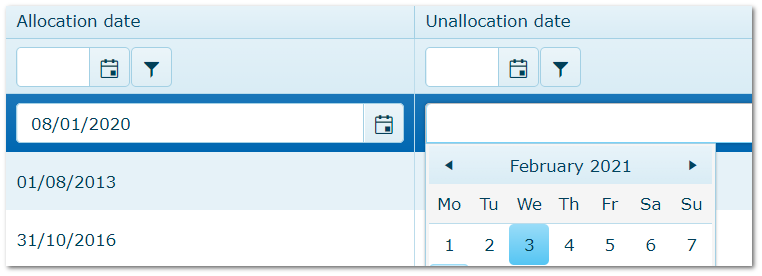
Tags can only be allocated to one vehicle at a time.
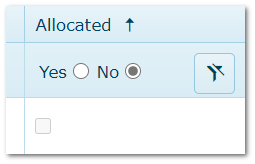
To See Available Tags Not Currently Allocated
Go to "Allocated" column and click "No" to see available tags.
Method 2
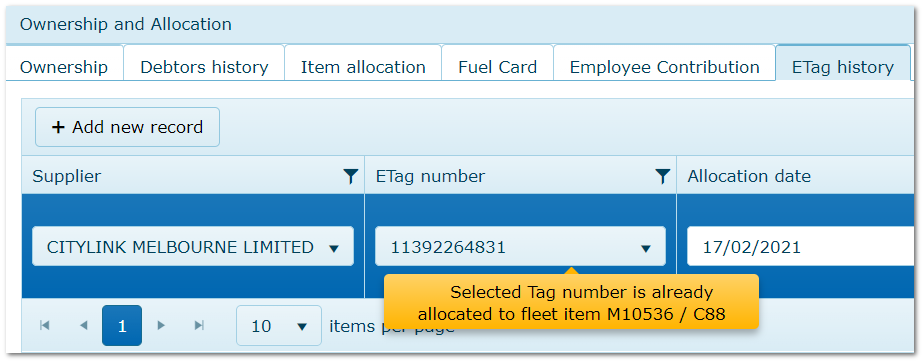
Fleet>>Ownership & Allocation>>ETag History
Tag allocation in fleet module is validated to stop multiple concurrent allocations
3. Viewing Tag Allocation History
To see allocation history for an individual asset: Fleet>>Ownership & Allocation>>ETag History
See picture "Method 2" above.
To see history for tags: Transactions>>Tolls>>Tag Allocation
Locate the tag and open its details to see a record of all allocations
4. Deactivating Tags No Longer in Use
Transactions>>Tolls>>Tag Numbers
If a tag is no longer in use E.g. lost, damaged, it can be deactivated.
This retains the history of the tag but prevents it being accidentally reallocated in the future.
•Locate tag and click "Edit".
•Untick the "Active" flag or enter a date to make the deactivation date different to today).
•Save.
Tabs can also be deactivate using the Toll icon. .png)
Tags cannot be made Inactive while allocated. First unallocate the tag (see 4 above).
|

