Dispose Assets and Change Status


1.  Asset Status & Disposal


When adding new assets, status can be "On Order", "In Service" or "Commissioning"

Not all seven statuses have to be used - "In Service" and "Disposed" are the minimum required

To change status: Tick the flag and enter the applicable date

Revert to a previous status by removing the flag and date and saving

Fleet Module Status and Disposal Tab

On Order

When adding a new asset with "On Order" status, a provisional/expected delivery date can be entered.


When the status is updated to "In Service", tick the "Use as Delivery Date" flag to change the provisional date to the "In Service" date.


Delivery date is a very important field as it is used for scheduling and utilisation.


Commissioning

If vehicles go through a commissioning process e.g. fitting equipment, radios etc., "Commissioning" status can be used.


At this status, a standard form commissioning sheet can be printed using the button. The form is configured in Templates.


 In Service

Assets must be set to this status when they go into normal service.


To update the provisional delivery date used when initially adding the asset to the "In Service" date, tick the "Use as Delivery Date" flag.


Delivery date is a very important field in AusFleet as it is used for scheduling and utilisation.


Decommissioning

If assets go through a decommissioning process to prepare them for sale (e.g. valeting, equipment removal), use this status.


At this status, a standard form decommissioning sheet can be printed using the button. The form is configured in Templates.


Available For Sale

After decommissioning, when the asset leaves active service, use this status if the asset is available for disposal but an auction date is not set.


It indicates the asset is out of normal use but still part of the fleet.


At this status, vehicles are sometimes used as pool vehicles pending sale.  It also helps to decide whether R&M should be carried out.


If the asset has accrued any costs that have not been invoiced, the invoices can be cancelled at this status by ticking the flag. Only the invoices are cancelled and the expenses are retained as part of the asset's running cost.


Allocate to Sale

Used when an auction date is known.


At this status, items temporarily used as pool vehicles may be brought back, ready for sale.


When the status is saved, the link opens a pop up where valuation and auction details can be entered.


Preventing R&M Invoicing

Parameter 670  stops R&M jobs from being invoicing as soon as status is moved to "Allocated to Sale" or Disposed. More>>Parameters>>Settings>>670


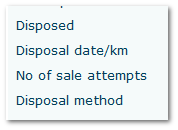
No of Sale Attempts, Last Bid, Highest Bid

The information can help assess whether reserve or valuation is too high


Sale attempts increases each time the status is changed from "Available for Sale to "Allocate to Sale", reflecting vehicles being sent to auction and returned unsold

Last Bid is the bid entered in the pop up window accessed using the "Allocate to Sale" link

Highest Bid is the highest figure entered in the bid field in the pop up


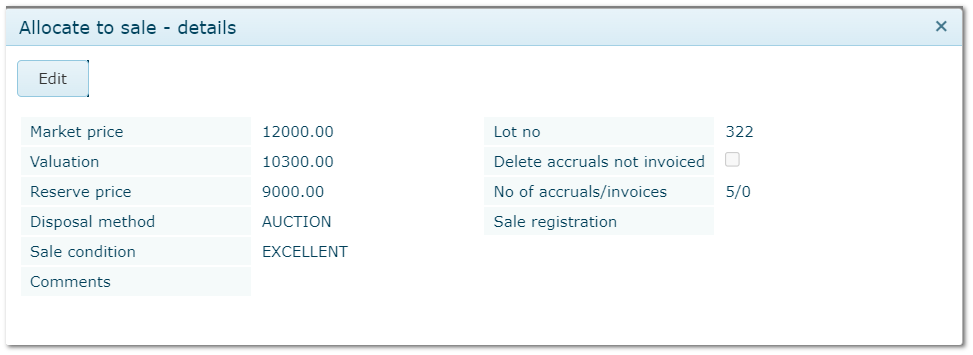
"Allocate to Sale" Pop Up Information


Sale Condition and Disposal Method

These are chosen from More>>Reference files>>Fleet>>Fleet Items.


Market Price, Valuation and Reserve Price

These can be reassessed and changed if disposal is unsuccessful


Delete accruals not invoiced

If the asset has accrued any costs that have not been invoiced, the invoices can be cancelled.

The accrued expenses are not cancelled and remain part of the asset's running cost.


No of Accruals/Invoices

Shows how many accruals and invoices are in the system to help decide whether to cancel them.


Sale Registration

If the vehicles registration is to be sold it can be entered here.


Allocate to Sale Pop Up
 

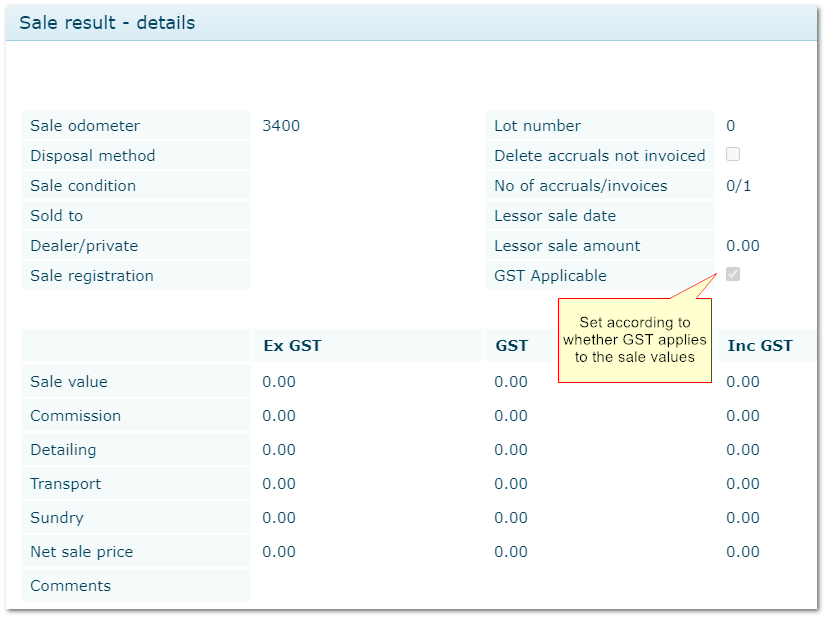
Sale Result  - Disposed

Disposed assets are removed from default views throughout AusFleet but can be displayed using the relevant flags in each module.


Active Lease Warning

If the asset has an active lease, a warning will appear to check the disposal date  is correct.

Lease end date is set in Fleet>>Leasing accordion and is shown in the screen above, for reference.


GST on Sale

Sale results can be entered without GST if appropriate - set the "GST applicable" flag as required.


Disposal Warning

Parameter 80 generates a warning message whenever an asset is disposed.  Configure the message in More>>Parameters>>Settings>>80


Preventing R&M Invoicing

Parameter 670  stops R&M jobs from being invoicing as soon as status is moved to "Allocated to Sale" or Disposed. More>>Parameters>>Settings>>670


Entering Transactions After Disposal

Some transactions can be added after disposal E.g. fuel transactions received from suppliers after disposal date. Menus have a "Show disposed Items" flag where this is possible.


Disposal details are also displayed in Fleet>>Purchase & Disposal Life Cycle for easy reference but they must be edited in the Status tab.


Disposal details in  Fleet>>Purchase & Disposal Lifecycle


Sale Result When Disposing an Asset


© Trisoft Corporation 2023