|
1. Importing Authority, PCS or FinanceOne Data
Interfacing>>Import Data
To use the Authority, PCS or Finance One import programs, contact AusFleet Help Desk or your Account Manager.
2. Import Income and Expenses Using CSV Files
Interfacing>>Import Data>>csv Import
2.1 Introduction
•When successfully imported, income and expenses are posted to the assets
•If posting fails, correct the record and repost (see 2.4 below)
•Values are posted to the financial period in which the transaction date falls. If it has been closed, it is allocated to the next open period
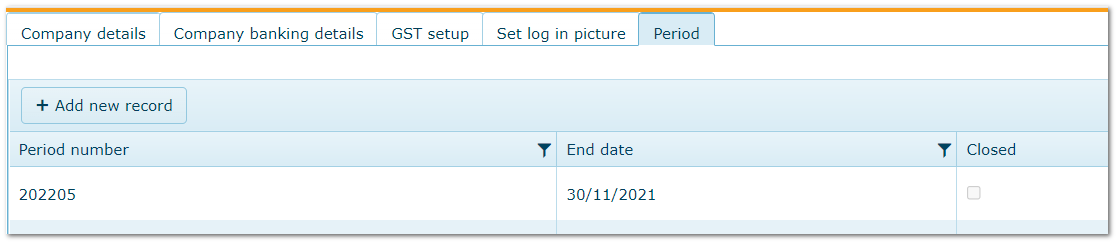
•Financial periods are created and closed in More>>Reference Files>>Administration>>Company Details>>Periods
Financial Periods in AusFleet
When posting, transactions are validated as follows:
•Ensure fleet item exists
•Ensure transaction is not prior to delivery date
•Ensure transaction is not after disposal date
•Ensure transaction type exists
•Ensure transaction is not a duplicate (checks for match on date/value/type/fleet item)
2.2 Import Process
Interfacing>>Import Data>>csv Import
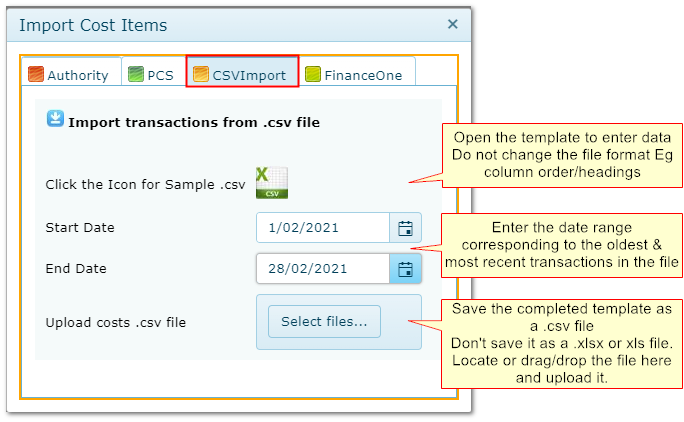
Values that can be imported:
Value
|
Max Characters/Format
|
Comment
|
FLEET NUMBER
|
20
|
Must be exactly as appears in AusFleet E.g. with/without spaces
|
REGISTRATION
|
20
|
Must be exactly as appears in AusFleet E.g. with/without spaces
|
DATE
|
DD/MM/YYYY
|
Date of transaction
|
INCOME or EXPENSE?
|
I or E
|
Single digit only
|
AMOUNT
|
$.cc
|
Do not include $/c symbols
|
ACCOUNT
|
20
|
The account code in More>>Reference Files>>Interface>>Accounts
|
TRANSACTION NUMBER
|
50
|
Must be a unique transaction number
|
2.3 Account Codes and Transaction Types
More>>Reference Files>>Interface>>Accounts
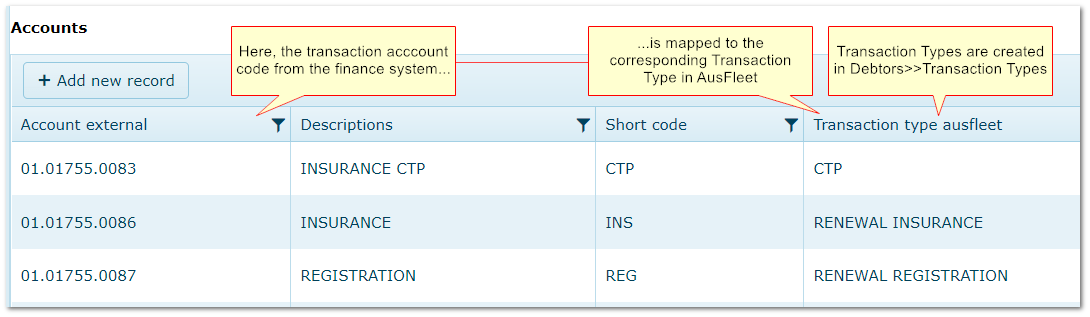
•Income and expenses are assigned to specific Account Codes in the finance system.
•When importing records, these Accounts Codes are entered in the csv file (see above)
•To post the transactions correctly in AusFleet, the Account Codes must be mapped to corresponding AusFleet Transaction Types
Mapping External Account Codes to AusFleet Transaction Types
2.4 Reviewing Results & Correcting Errors
Interfacing>>Import Data>>View by Batch
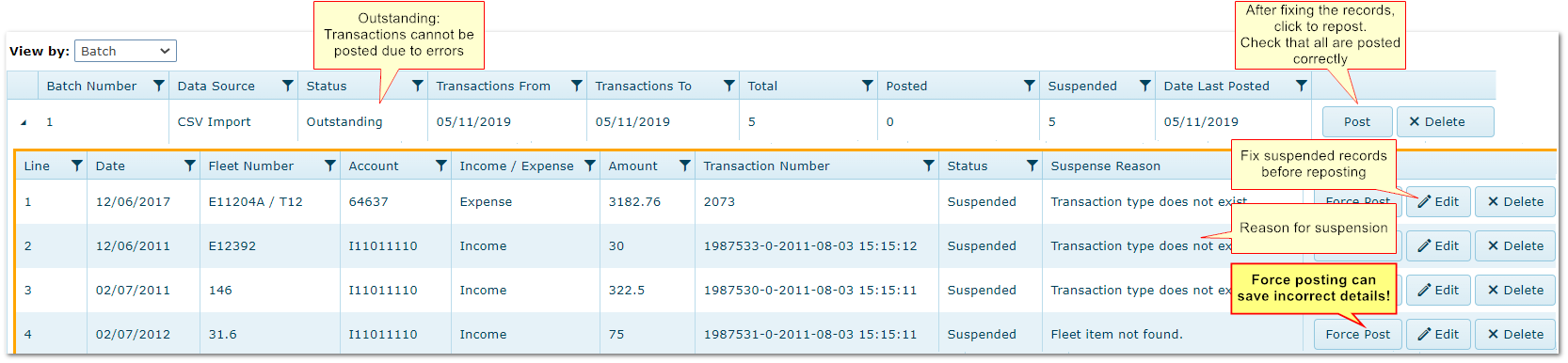
•After importing, the new batch appears in this screen for review.
•If the batch status is "Outstanding", open the batch and check the suspended transactions.
•Fix any errors and re-post the batch. Make sure all records are now posted.
Force Post - Use With Caution.
If you cannot fix a record, you can force post it providing the fleet number is recognised. However this is dangerous as it can result in saving incorrect details.
Reviewing and Correcting Suspended Transactions
|

