|
1. Introduction
Before using recurring bookings, see the following set up details:
Recurring Bookings User Rights
Recurring Booking Parameters
Users may make bookings that reoccur daily, weekly or monthly, for period of time.
Recurring bookings are validated in the same way as single bookings.
AusFleet checks:
•The Availability times in the Hire Profile
•Existing bookings that conflict during the entire recurring period.
Recurring bookings cannot be made using the AusFleet app.
The optional "Manager Booking Approvals" applies to recurring bookings if used by your organisation.
1.1 Daily
The asset is booked for the same time/duration each day.
To book an asset daily but excluding weekends, use the "Weekly" option.
1.2 Weekly
The asset is booked for the same duration on selected days each week E.g. Every Monday, Wednesday and Friday.
1.3 Monthly
The asset is booked for the same time/duration each month on either:
•A selected date E.g 15th of each month or
•A selected day E.g. 2nd Monday of each month
How a Daily Booking Appears in the Calendar

2. Making a Daily Recurring Booking
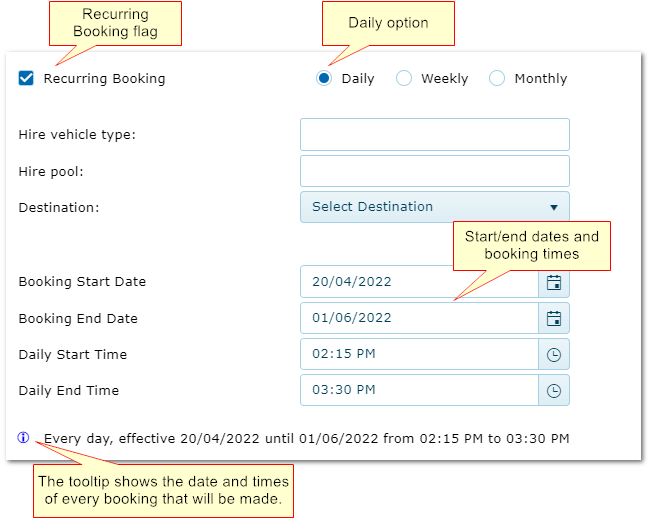
1.Tick the "Recurring Booking" flag and select "Daily".
2.Enter vehicle type, pool and destination as usual.
3.Enter the dates of the first and last bookings. In the example below, the booking will be every day starting 20/04/22 and ending 01/06/2022
4.Enter the "From/To" times of the booking as usual.
5.Click Continue to see available assets and finalise the booking as normal.
A message, "Please check time availability" will appear if the chosen asset is unavailable fie to profile or existing booking.
The calendar and booking list are updated with a separate booking number for each occurrence.
3. Making a Weekly Recurring Booking
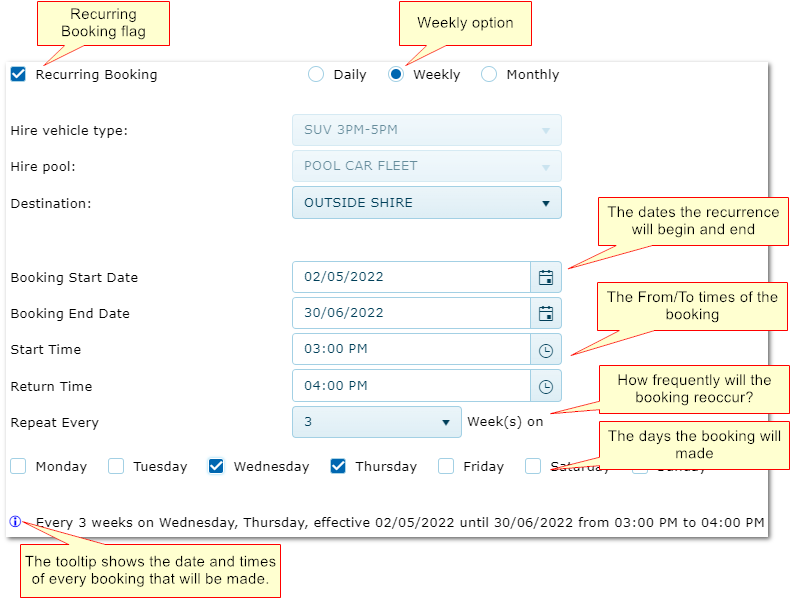
1.Tick the "Recurring Booking" flag and select "Weekly".
2.Enter vehicle type, pool and destination as usual.
3.Enter the dates of the bookings will start and end.
4.Enter the "From/To" times of the booking as usual.
5.Click Continue to see available assets and finalise the booking as normal.
A message, "Please check time availability" will appear if the chosen asset is unavailable fie to profile or existing booking.
The calendar and booking list are updated with a separate booking number for each occurrence.
Example
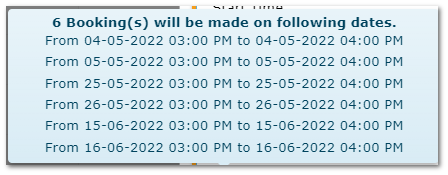
In this example, the user wants to book a car on Wednesday and Thursday every three weeks, from 3pm to 4pm.
oThe start date, 2nd May 2022 is a Monday, so the first booking is on the first Wednesday after the 2nd I.e. Wednesday 4th.
oThe last booking will be made on the last Wednesday or Thursday on or before the End date (30/06/2022), allowing for the three weekly occurrence.
Bookings That Will be Made Based on the Settings Above
4. Making a Monthly Recurring Booking
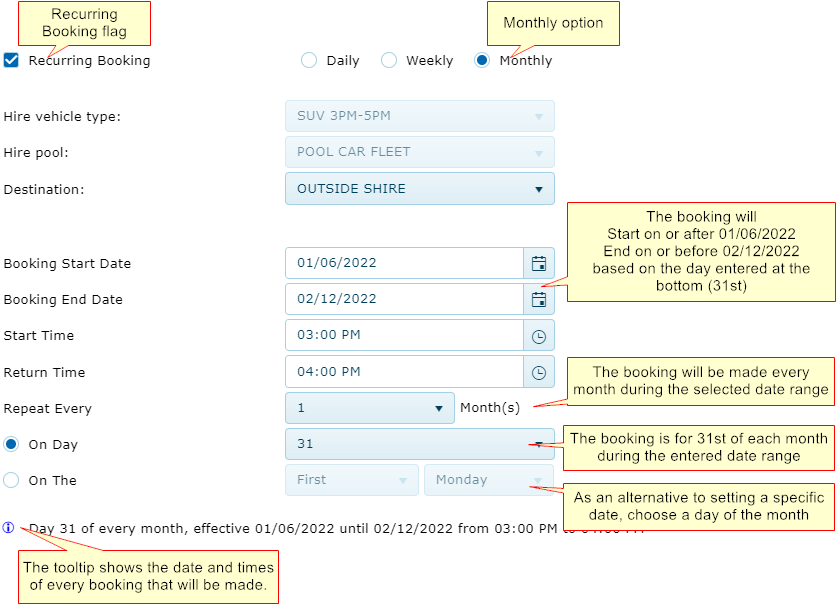
1.Tick the "Recurring Booking" flag and select "Monthly".
2.Enter vehicle type, pool and destination as usual.
3.Enter the dates of the bookings will start and end.
4.Enter the "From/To" times of the booking.
5.Click Continue to see available assets and finalise the booking as normal.
A message, "Please check time availability" will appear if the chosen asset is unavailable fie to profile or existing booking.
The calendar and booking list are updated with a separate booking number for each occurrence.
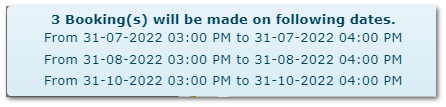
Important! If a month does not contain the date entered, a booking will not be made for that month - see the example below where June, September and November only have 30 days.
Example
In this example, the user wants to book a car on the 31st of the month for six months, from 3pm to 4pm, starting 1st June 2022
oThe first booking is made on 31st July because June has only 30 days
oThe last booking is made on 31st October because November has only 30 days
No bookings will be made in June, September or November because they only have 30 days.
Recommended: Always check the tooltip to make sure all required booking dates are included
Bookings That Will be Made Based on the Settings Above
|

