|
•Open Ended Bookings
•Back Dated Bookings
•Standard Bookings via Calendar or Icon
•Booking via AusFleet App (Different Chapter)
•Manager Booking Approvals
•Manual or Automatic Pick up And Return
1. Making Open Ended Bookings
Designed for plant and equipment hire, these are bookings which continue indefinitely with no end date and are invoice monthly based on a flat monthly charge.
They can only be made by administrators with User Right 40.11 i.e. AusFleet licensed users.
The monthly charge is levied in full for each calendar month or part thereof.
Only assets with a Hire Profile flagged as "Open Ended" can be booked in this way.
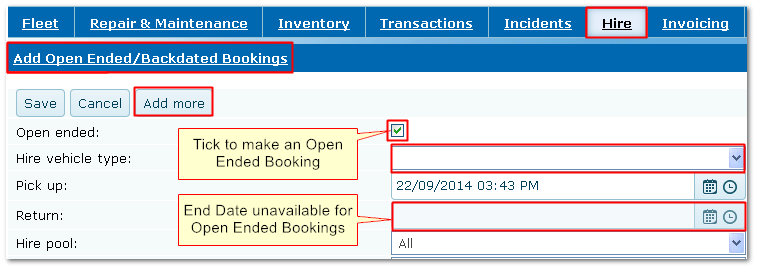
1.Select "Add Open Ended/Backdated Bookings" option in the Hire menu
2.Tick the "Open Ended" flag and enter details. The return date is inactive and only items with an "Open Ended' profile are displayed
3.To terminate an Open Ended Booking, locate the transaction in the main Booking tab and enter an end date
1.1 Changing Monthly Hire Charges for Open Ended Bookings
The following rules apply when changing monthly charges for open ended bookings:
•If the monthly charge is changed in the hire profile, you are prompted to update all current bookings using that profile. On yes, all open bookings are updated with the new charge from the current month
•If the monthly charge is changed in the fleet module for a specific asset, open bookings for the asset are automatically updated with new rate
•Audit trail is updated with these changes
Making an Open Ended Booking
2. Making Back-Dated Bookings
Backdated bookings can only be made by administrators with User Right 40.11 using the "Add Open Ended/Backdated Bookings" link in the Hire menu (see image above).
Complete the form without ticking the Open Ended flag and remember to save your booking.
3. Making Standard Bookings Using Calendar or Icon
Bookings can be made in three ways:
|
•Hire Calendar in the Hire Module
•"Add Booking" Icon
•AusFleet Booking App (see relevant chapter)
|
Booking Icon

|
User Right 40.01 is required to access calendar and icon - this is a non-licensed User Right.
•Icon and calendar use the same booking screen but vehicle details are preselected when using the calendar.
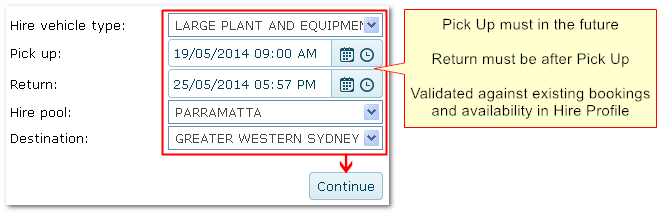
•Icon: Click on the icon to open booking screen and enter vehicle type, dates, times and other requirements (see step 1).
•Calendar: Click on the booking start date for your chosen vehicle in the calendar.
Making a booking is a four step process...
Step 1 - Enter Basic Requirements
|
|
|
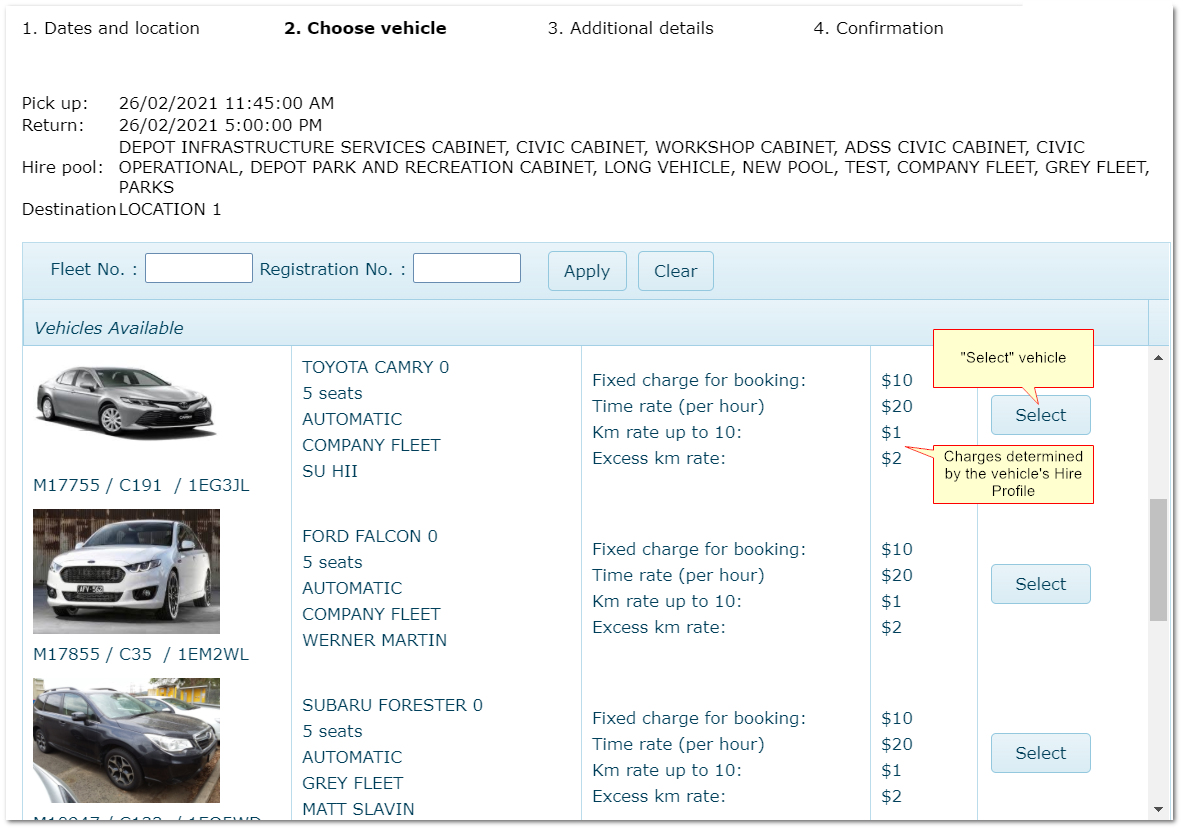
Step 2 - Choose Vehicle
|
|
|
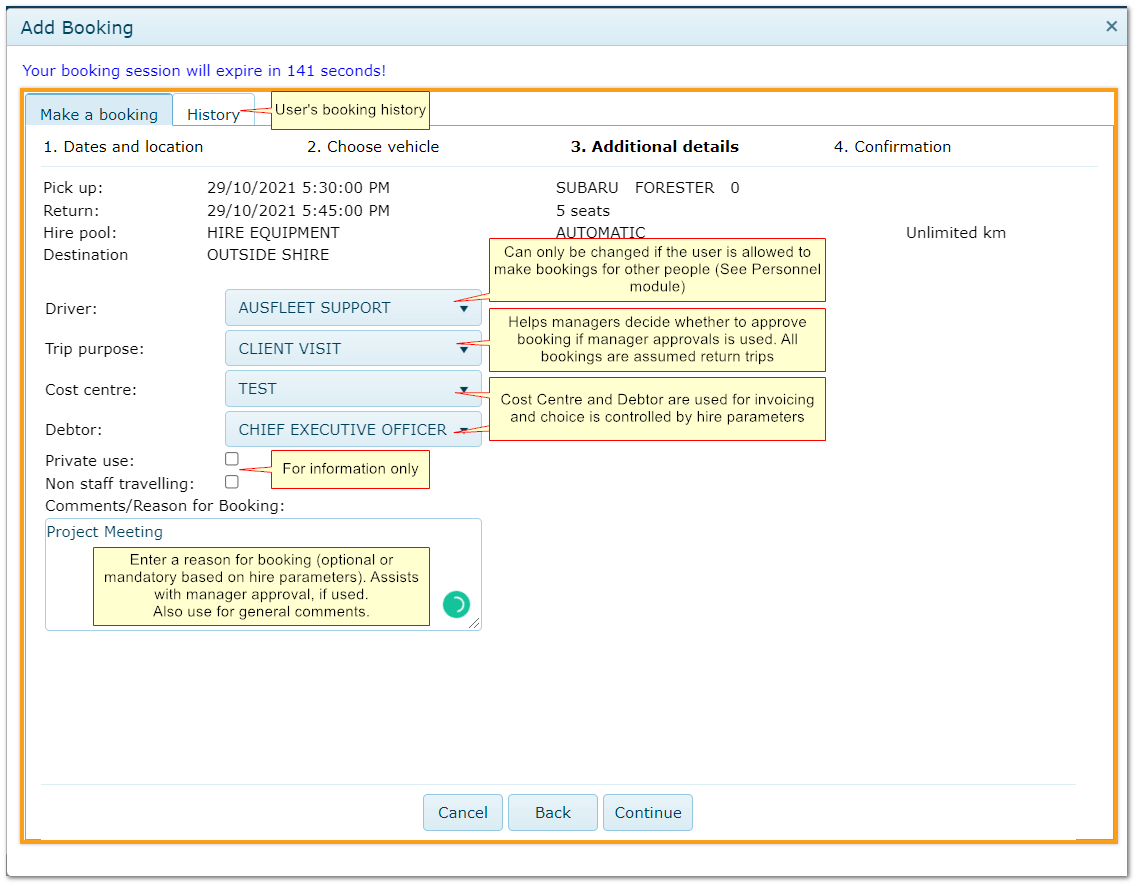
Step 3 - Enter Additional Information
|
|
See Hire Parameters for options to control these fields.
|
Step 4 - Confirm Booking or Amend Details
|
|
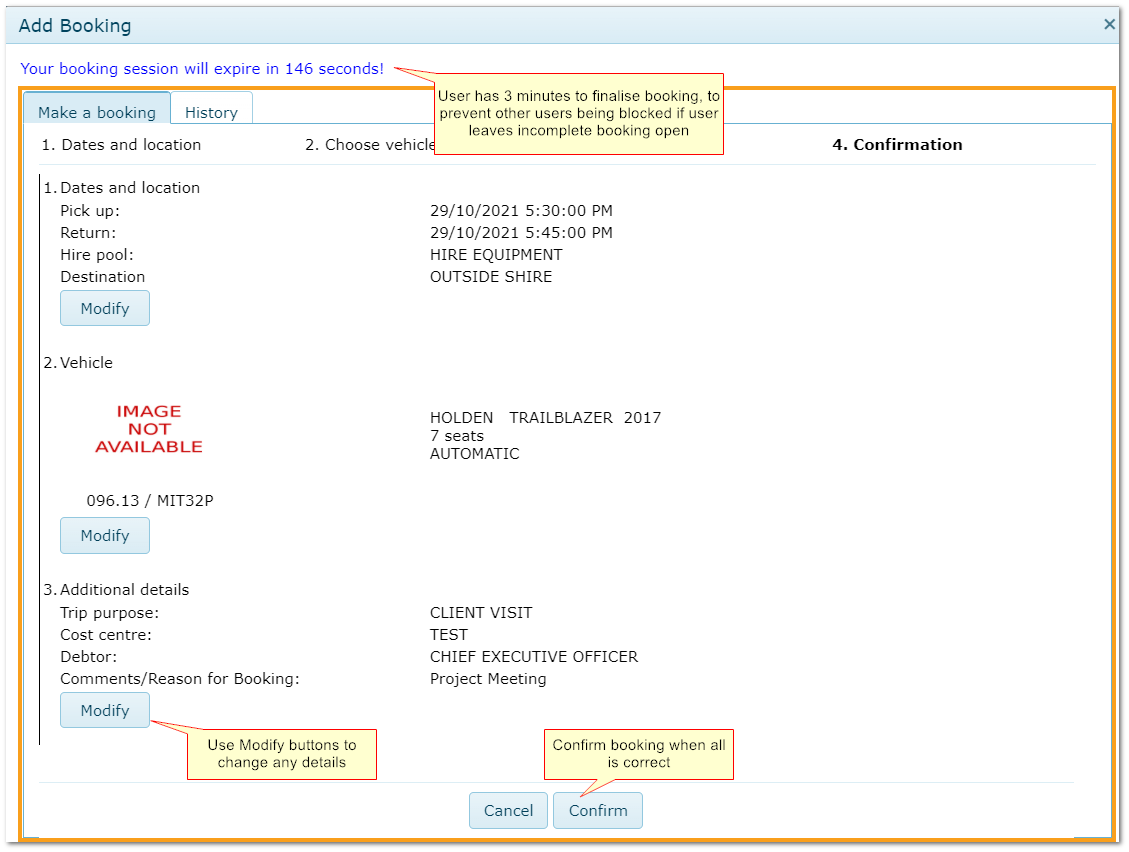
On Booking Confirmation:
•Emails are generated as per Hire Parameters and if email addresses are entered in Personnel module
•Hire Calendar is updated
•Transaction is available to administrators in Hire>>Bookings tab
•Manager receives approval request if Approvals are used (see below)
•Booking status is Pending (if approval required) or Booked
•Driver can view booking in History tab, Calendar and App
|
4. Booking Approval Process (Optional)
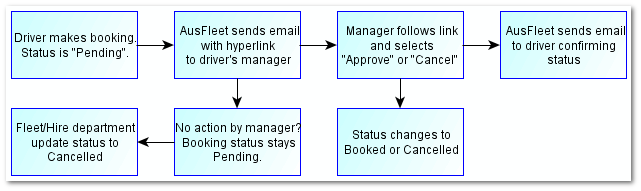
AusFleet offers an optional approval process for hire bookings, whereby the driver's manager must approve the booking before it proceeds.
4.1 Approval Process Overview:
4.2 Approval Process Requirements
1.Parameter 160 must be ON
2.Parameter 230 selects whether a reason for booking is mandatory or optional (see step 3 above). A reason for booking may help approval decisions.
3.The driver's manager must be included in the driver's Personnel details.
4.The manager's email address must be included in their own Personnel details
5.The email server details must be entered in Hire Parameters (AusFleet Help Desk can assist with these settings)
6.Configurable email templates are available in Templates
4.3 Approving Bookings
1.When the manager receives the email request to approve, they click on the link in the email.
2.This takes them to AusFleet, where they are presented with the booking requiring their approval which has the status "Pending".
3.They review booking details and click on "Approve" or "Cancel" buttons.
4.The driver is notified of the decision by email and the booking status is updated to "Booked" or "Cancelled".
5. Manual Pick Up and Return
More>>Parameters>>Flags and Settings>>180 and 190
Parameter 190 is OFF:
AusFleet assumes the pick up/drop off times are correct and updates booking status accordingly. No action is required by the driver.
Parameter 190 is ON:
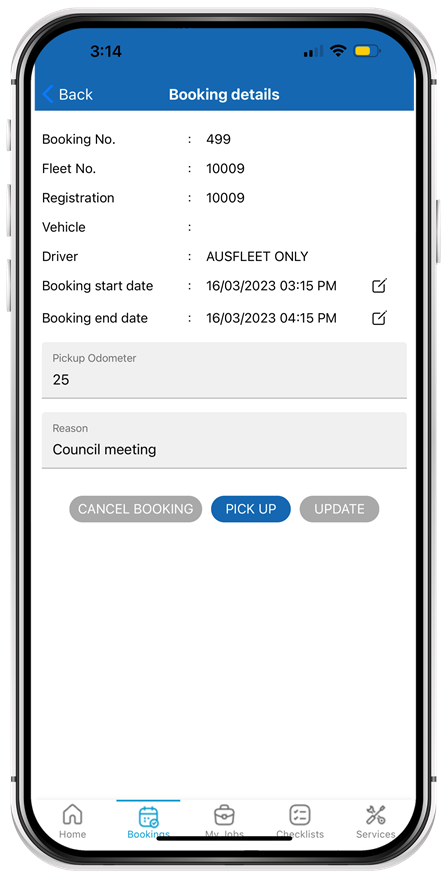
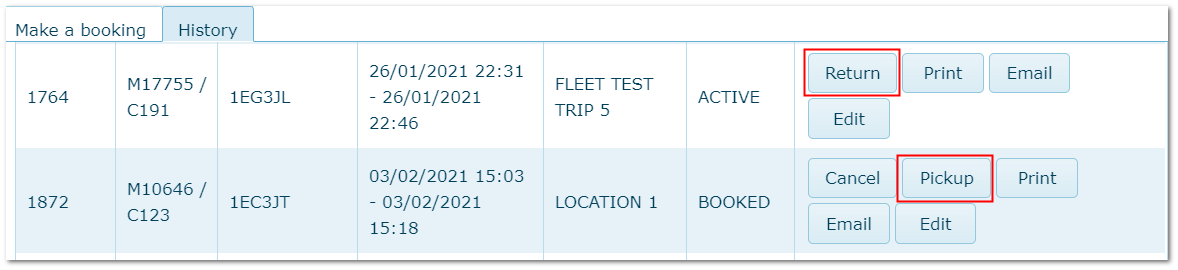
Driver must click "Pick Up" and "Return" buttons in the booking screen or AusFleet App to start and stop the booking.
Parameter 180
If 190 is ON, 180 controls whether charges are based on:
•booked times or
•actual pick up and return times
See also:
Key Cabinet if you use the optional Key Cabinet Interface
Booking App
|
Return Button in Booking App, Booking Details.
|
Pick up Return Buttons in Booking History List accessed via Icon.
|
|

