|
1. Introduction
AusFleet can be integrated with Australian Security Technologies (AST) KeyWatcher Key Cabinet, using AST's "KeyMaas" API.
Contact AusFleet Help Desk or your Account Manager for details and a quotation.
2. Benefits
When keys are collected an returned, booking pick up/return times are updated in AusFleet.
These times can be used to charge for actual time used instead of the booked times, depending on your organisations preference.
Use Parameters 180 and 190 to set your preference.
The cabinet also allows access to the right person using an RF access card.
Push notifications are generated to drivers to confirm details.
3. Mapping AusFleet Users to Key Cabinet
There are three steps to complete the initial configuration:
•Enter users in AusFleet
•Set up users in the AST KeyMaas portal
•Map the two sets of information together.
Make sure cabinet users are entered in AusFleet Personnel module before proceeding to the steps below.
3.1 Create Users in KeyMaas Management Panel
Next, add cabinet users into AST's KeyMaas Management System (https://www.keymaas.com.au/):
|
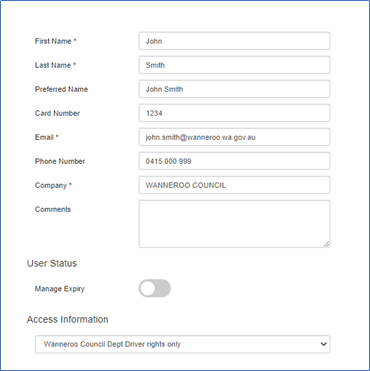
1.Go to the ‘User Management’ tab and select ‘Add User’.
2.Enter the users full name, ensuring the details are exactly the same as entered in AusFleet.
3.Card Number = RFI Card Number.
4.Access Information: Choose from the drop-down menu.
5.When complete, select Add User.
6.Review all details then confirm to finalise.
7.A unique KeyMaas User ID will be issued once created. 
8.Proceed to the User Profile Set Up
|
AST KeyMaas User Set Up
|
3.2 Set Up User Profiles In KMass
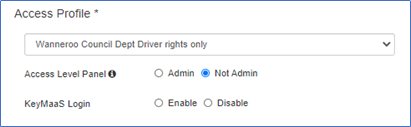
Still in the KeyMaas Management Panel, in ‘User Status’, set Drivers' Access Profile as below.
AST can provide further details on these options.
Access Level Panel
•Admin = Allows the user to acknowledge alarms at the panel and to do an emergency key release.
•Not Admin = No access or rights to the panel allocated.
KeyMaas Login
•Enable = User can login into KeyMaas Web Portal.
•Disable = User cannot login into KeyMaas Web Portal.
KeyMaas Privileges (only appears when KeyMaas Login is enabled)
•Full Access = User is able to create and view reservations and other users, for Admin use only.
•Read Only = User can view only with no admin level or edit access.
|
AST User Profile Set Up Screen
|
3.3 Final User Mapping
This final step links your staff in AusFleet to the people entered in the KeyMaaS Portal, so the systems can communicate correctly.
Go to AusFleet>>More>>Reference Files>>KeyMaas>>KeyMaas Users Mapping.
1.Click "Refresh KeyMaas Users" button to make sure the list is up to date.
2.For each Employee needing to use the cabinets, click Edit and choose their KeyMaas User name set up above in the drop down menu.
3.The mapping process is now complete
4. Map Assets
In the same way you have mapped users in the cabinet system and AusFleet, you need to do the same with assets for hire.
AST will advise on how top enter key details and locations in their portal for each asset.
When complete, go to AusFleet>>More>>Reference Files>>KeyMaas>>KeyMaas Fleets Mapping.
For each asset to be connected to the cabinet system, click Edit and choose the Site and Key.
|

