|
1. Main Functions
Make a Booking
|
Click on your preferred vehicle/start date to open the booking window. Vehicle details are preselected, dates/times can be changed
|
View/Edit Booking Details
|
Click on an existing booking or unavailable period. User rights required to edit bookings
|
Make a Vehicle Unavailable
|
Change the menu at the top from "Create Booking" to "Create Unavailable Period". Click on the vehicle/date cell. See here for more information
|
Zoom to Hour View
|
Click the "Go to Hour View" button at the top
|
Find Specific Transmission Types
|
Use the Transmission filter at the top
|
Change Month in View
|
Use arrow buttons at the top
|
Filter for Suitable Vehicles
|
Use the filters at the top - fleet no., registration, make/model, hire vehicle type etc
|
Change Booking Times/Days
|
•Click on the booking and edit or
•Click on the edge of a booking and drag to extend or reduce the booking times
•Click inside and drag a booking to a different day/time
|
2. Calendar Colour Codes
The coloured bars in the calendar represent to following:

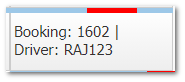
The position/length of the coloured indicator bar represents the booking/unavailable start/end time.
This helps to see available booking periods when in month view.
Each cell represents midnight to midnight.
Example: This booking is from 11:20 to 18:45.
3. Calendar Functions - Month View
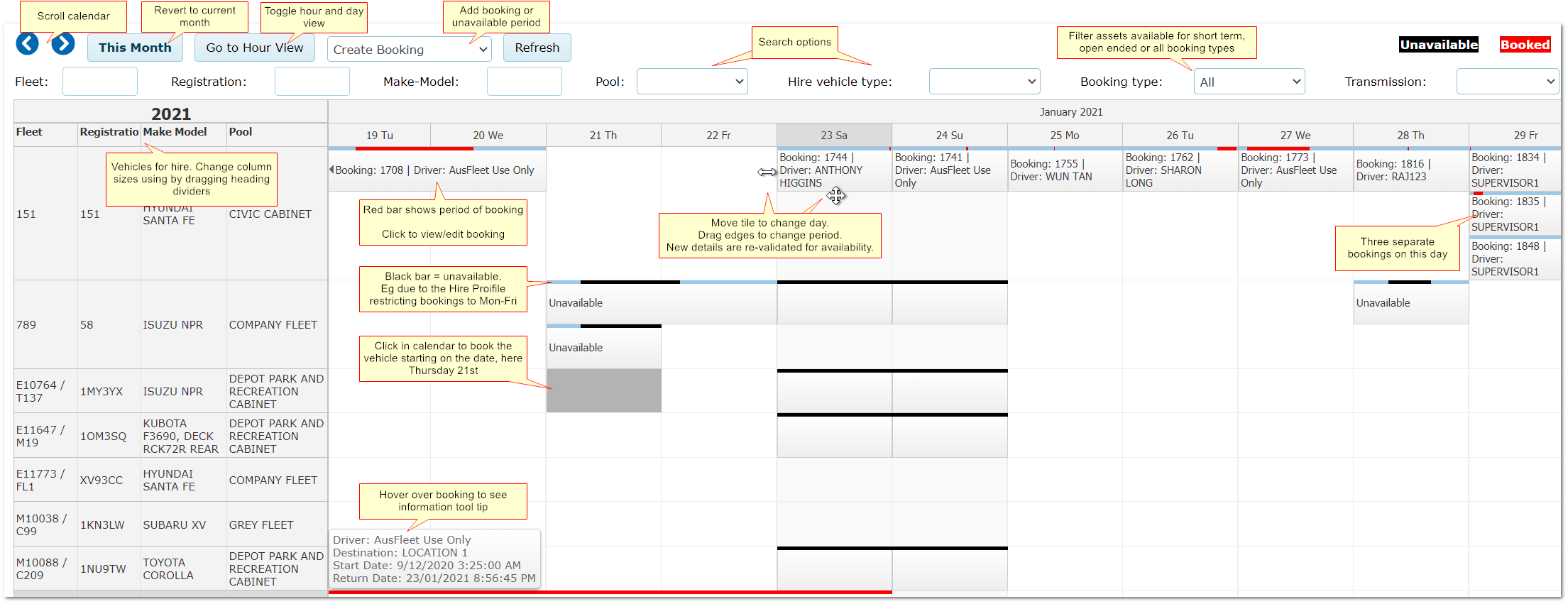
The calendar only shows vehicles that are in the same Hire Pool that the user is allocated in Personnel module
4. Hour View
The zoomed in view help to identify gaps between bookings. Features in Hour View are the same as in Month View.
|

