|
1. What Are User Rights?
User Rights (or "Rights") are "permissions" which control a user's ability to access and/or change details in different modules, areas of functionality etc.
Rights are system controlled and cannot be edited/deleted/suppressed. They can only be allocated or unallocated to people.
Allocating a particular User Right to someone gives them access to that specific module, screen or function.
E.g. The ability to access a module, the ability to change inventory pricing, the ability to make bookings using the booking calendar.
2. What Are User Groups?
•They are "collections" of User Rights grouped together for easier allocation to people by allowing many rights to be applied to a person at once
•Groups can be created to apply to different categories of users E.g. Maintenance Personnel Group, Drivers Group, Full Access Administrators Group, Hire Pool Administrators Group
•One or more Groups and/or Rights may be applied to users as required
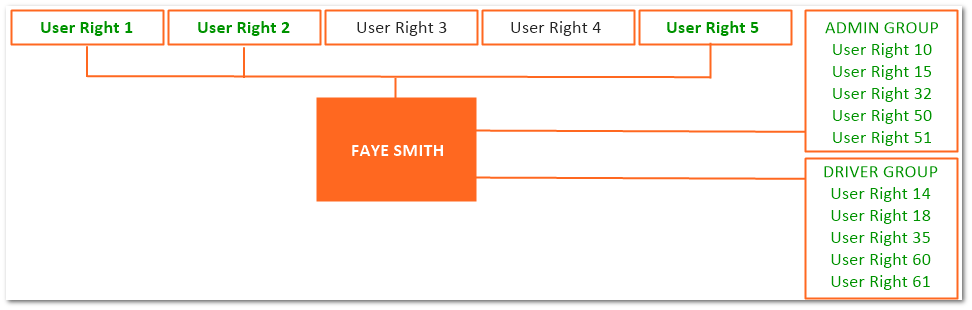
•In this example, Faye has been allocated 2 Groups (Admin and Driver) + 3 individual Rights (1,2,5), giving her 13 separate User Rights in total
Adding User Rights to a User Group and Allocating to a User
AusFleet Help Desk can help in setting in User Groups, either as part of your support services or as a chargeable Professional Service, depending on your Support Package.
3. User Rights That Do Not Affect Licensed User Count
AusFleet is licensed based on the number of users allowed access to the system and this is monitored via the allocation of user rights.
However, some users are allowed limited access to some functionality without affecting your user count. These are called "Non-licensed Users".
These User Rights can be granted to people without them being counted towards your Maximum Licensed User Count.
Allocating any other rights will cause the person to be counted as a licensed user.
4. Allocating User Rights and Groups to a Person
More>>User Rights>>Users
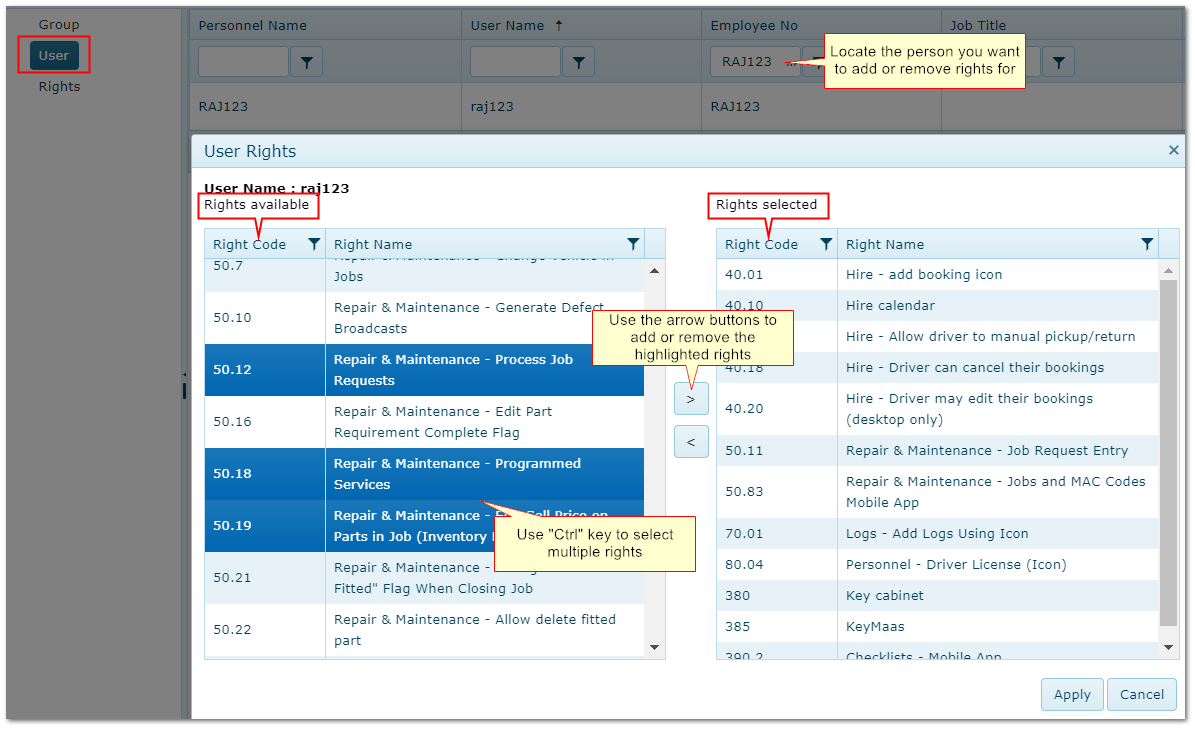
The same process applies to individual rights and groups.
Select the User's name and click "Rights" or "Groups" button adjacent to their name
Click on the required right(s)/group(s) and use the arrows to add/remove.
Adding User Rights to a Person
5. Adding and Editing User Groups
More>>User Rights>>Groups
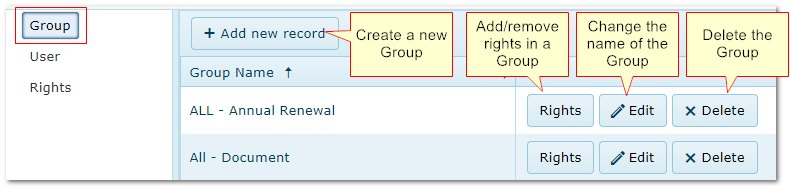
To create a User Group:
•Click "Groups" in the left pane
•Click "Add New Record" and name the Group
•Click "Rights" and follow the process in 4 above to add/remove rights
•When the Group is complete, it can be allocated to people following the instructions in section 4 above.
Add/Edit User Groups
|

