|
See Repair & Maintenance Module
1. Introduction
My Jobs App shows your allocated jobs for the current and next day. Any incomplete jobs are retained for the next day.
The App is best suited for use on tablets.
1.1 Job Details Include:
•Job number, date, asset details etc
•Estimated hours for the job
•Parts to be fitted
•Requirements to be completed
•Repair codes that can be added
•A full "read only" job card with comprehensive job details
1.2 Timesheet Functions
When these buttons are used, timesheets are created for your work.
•Start Job Button: Used when work starts on a job
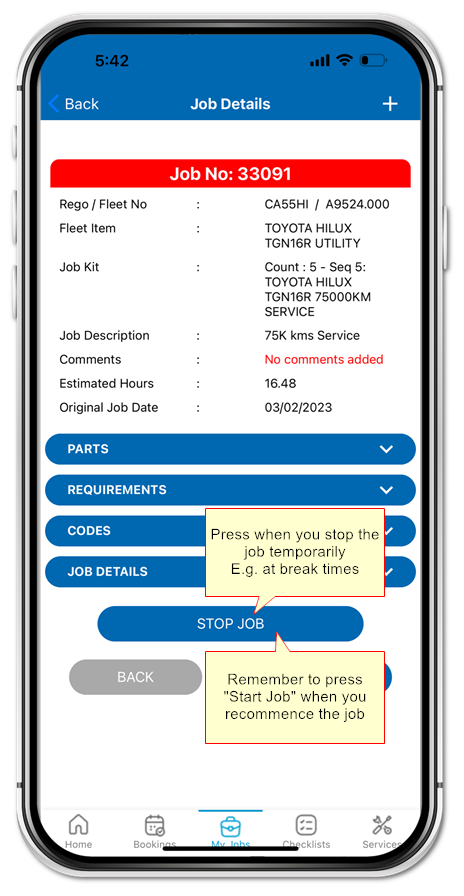
•Stop Job Button: Used when you stop work temporarily e.g. for lunch, breaks etc.
•Finish Job Button: Used when the job is completed.
Timesheets are created in the Timesheets tab in the job in AusFleet

1.3 Parts/Requirements Options
Any parts and requirements added to the job in AusFleet will be listed in the app.
Using tick boxes:
•You can confirm which parts are fitted/not fitted
•You can confirm which requirements have been carried out and which have not
These confirmations update the job's parts & requirements tabs in AusFleet.
.png)
1.4 Defects/Comments
You can use the app to report defects found or add general comments.
These details flow through to the job's Comments/Defects tab in AusFleet
.png)
1.5 MAC Codes
MAC (Maintenance Analysis Codes) provide seven classifications for each job to help analyse repair and maintenance activities.
In the app, the user can enter three of these categories based on their findings:
•Work Completed
•Repair Reason
•Repair Cause
Their entries update the MAC Codes tab in AusFleet
.png)
Starting and Stopping Jobs
|
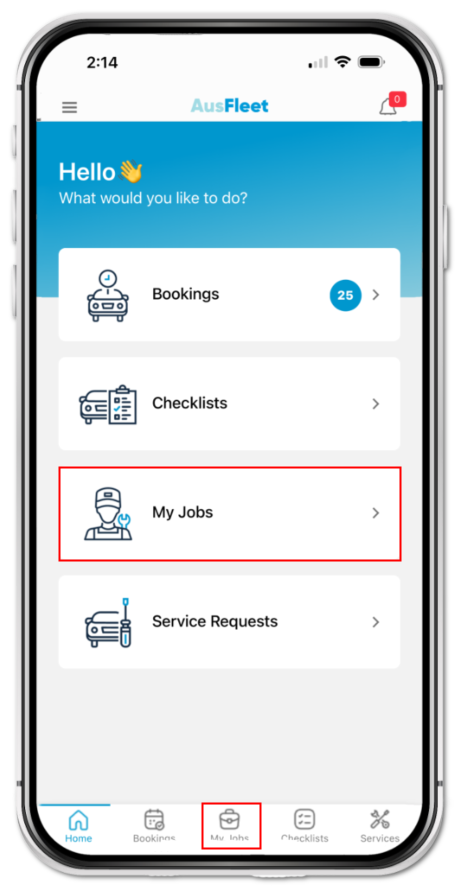
Access Your Allocated Jobs
Select "My Jobs" using either icon.
|
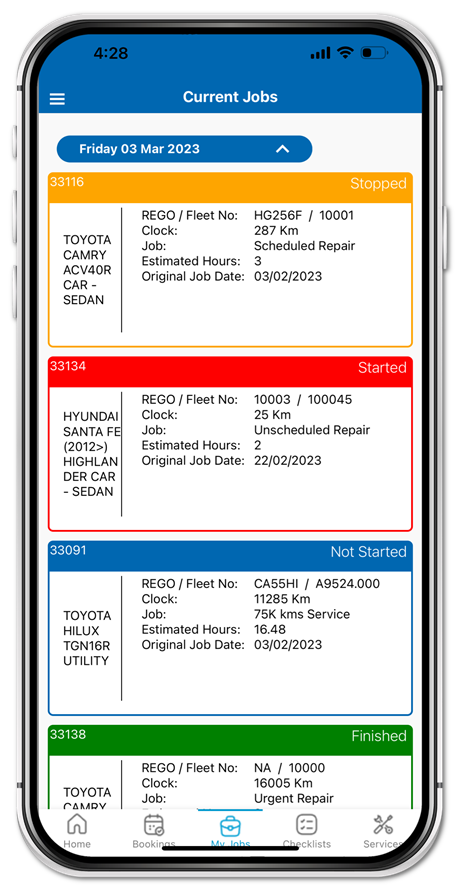
Select the Job To Work On
Click on a job to see details.
Orange
|
Job has commenced but temporarily stopped
|
Green
|
Job finished completely
|
Red
|
Job started and in progress
|
|
Blue
|
Not yet started
|
|
To Start a Job
Press "Start Job"
|
|
|
|
|
To Stop Work Temporarily
Press "Stop Work"
|
When the Job is Complete
Check parts, requirements, codes, comments and defects have been updated.
Press "Finish Job".
|
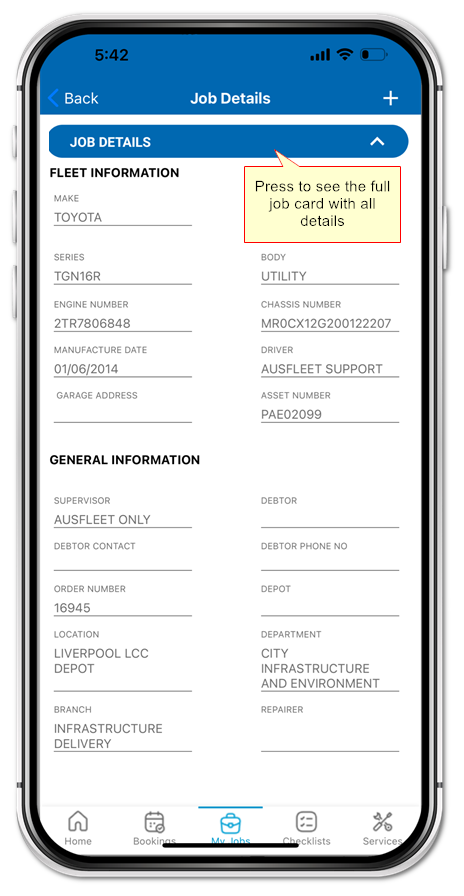
To See the Full Job Card
Press "Job Details" button.
The details cannot be changed.
|
|
|
.png)
|
|
Updating Parts, Requirements, Comments, Defects, Codes
|
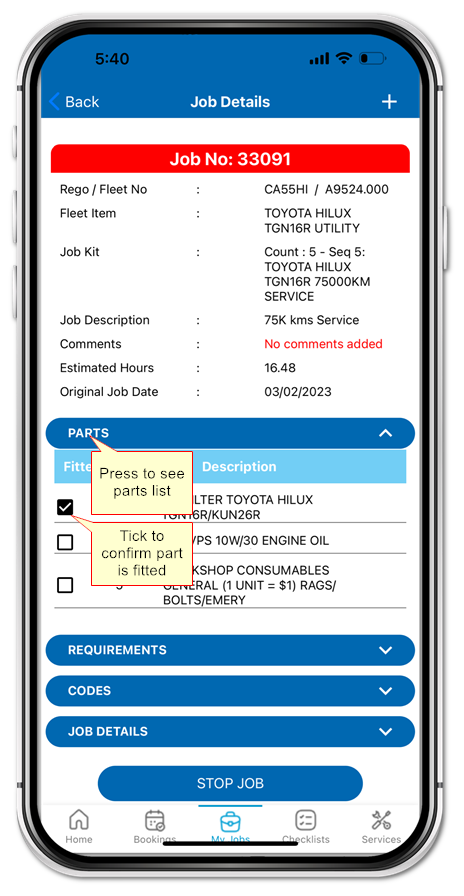
Parts
Press "Parts" button.
Confirm parts fitted and update fitted quantities.
|
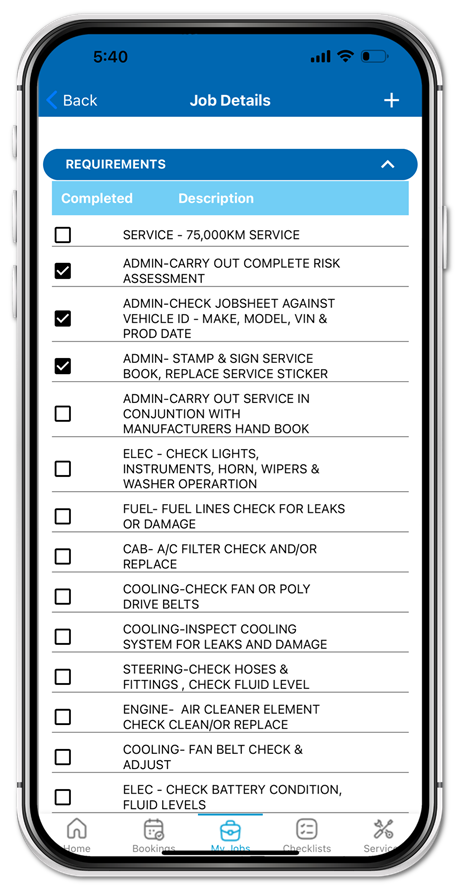
Requirements
Press "Requirements" button.
Tick/untick to confirm which have been completed.
|
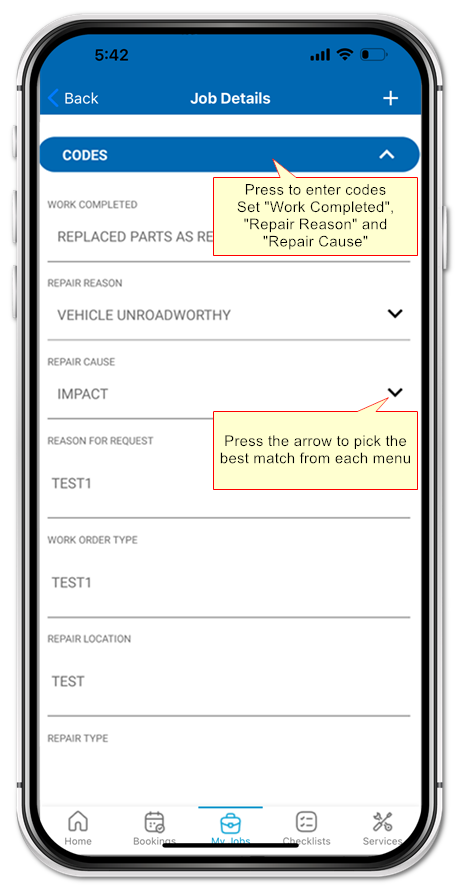
Codes
Press "Codes" button.
3 can be changed. Pick the best matches for the job.
|
|
|
.png)
|
|
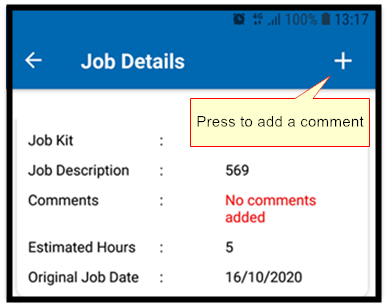
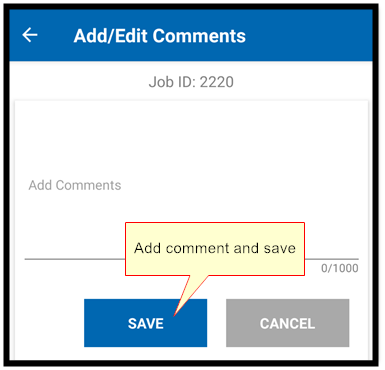
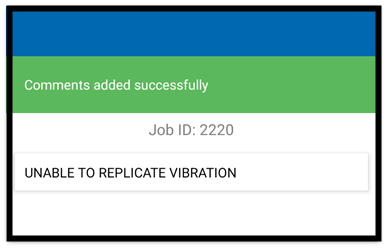
To Add or Change a Comment
In Job Details, Press
Choose "Add/Edit Comment"
Enter a comment or edit an existing one.
|
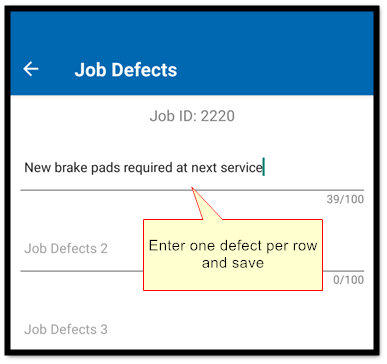
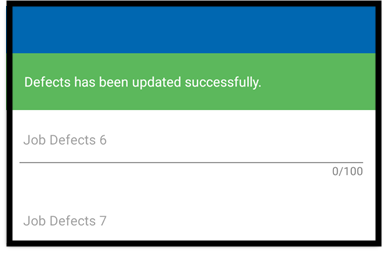
To Add or Change a Defect
In Job Details, press.png)
Choose "Add/Edit Defect"
Enter one defect per line or edit an existing one.
|
|

.png)
|
.png)
.png)
.png)
|
|

