|
1. Recommended Order to Complete Reference Files
1.Debtor Types
2.Debtors (if they are to be attached to department hierarchies for invoicing)
3.Department hierarchies
Note:
If you plan to use Debtor Types to charge different labour rates to different customer types, it is better to complete Hour Types reference file first.
This reference file determines which times types are chargeable and which are not.
2. Creating Debtor Types
More>>Reference Files>>Debtors>>Debtor Types
You should enter the Hour Codes in Reference Files>>Repair and Maintenance>>Hour codes before starting this.
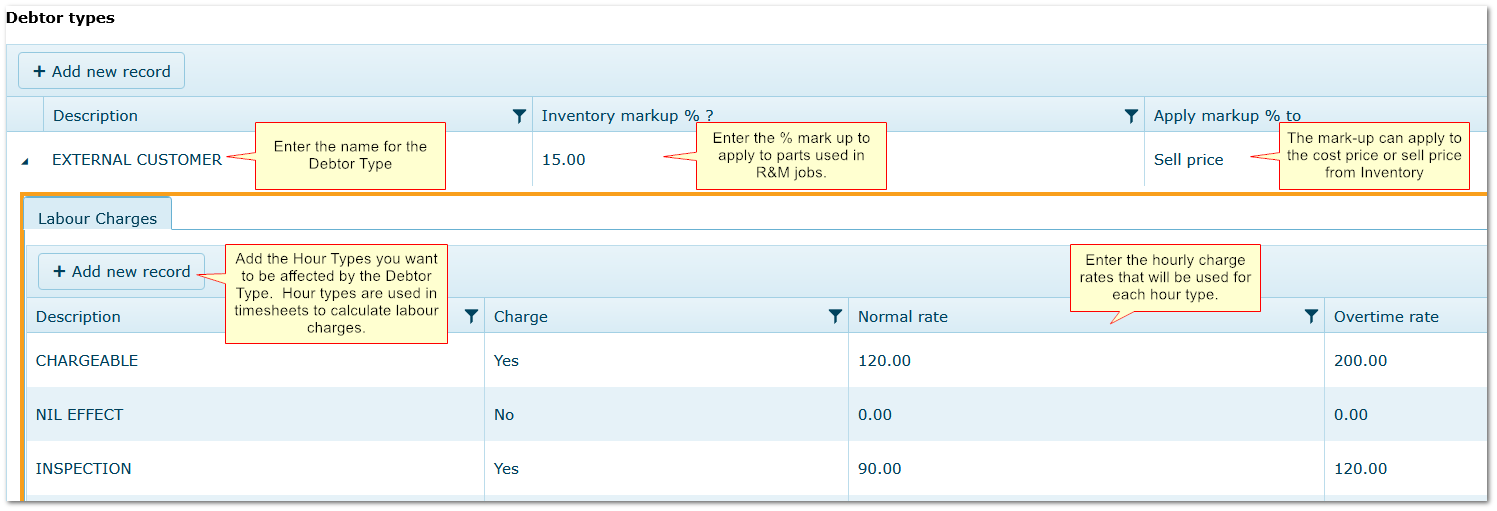
•Decide how many and which Debtor Types you require e.g. Internal, External, Corporate etc.
•Your decision will be governed by how many different price/mark up variations you need
•If all Debtors (customers) are charged equally, Debtor Types are probably not required
Complete the reference file as shown below.
Creating Debtor Types
3. Creating "Debtors"
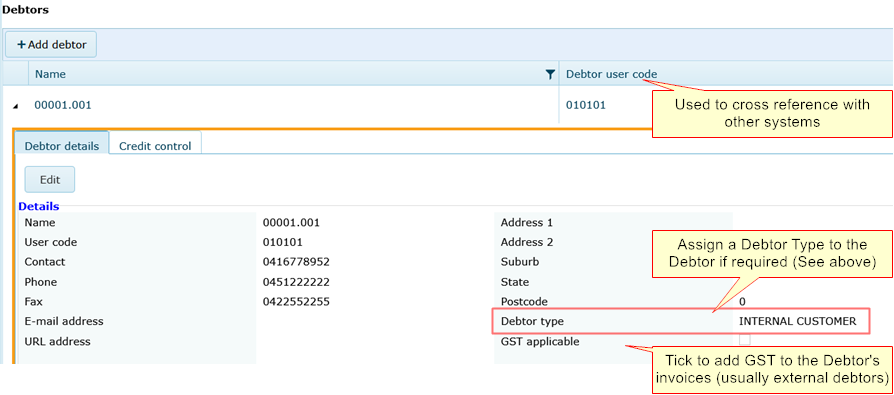
More>>Reference Files>>Debtors>>Debtors
NOTE: If the "Multiple Debtors" option is used then you can ignore this section.
Add Debtors at More>>Reference Files>>Debtors>>Debtors.
3.1 Credit Control Tab
In the screen above, the "Credit Control" feature works where a financial interface updates customer current credit amount.
When fields are populated, a warning appears when creating transactions for customers exceeding their credit limit.
Contact AusFleet Support about tailored interfacing.
4. Creating Department Hierarchies and Attaching Debtors
More>>Reference Files>>Debtors>>Department Hierarchy
If you split expenses between multiple debtors, go here.
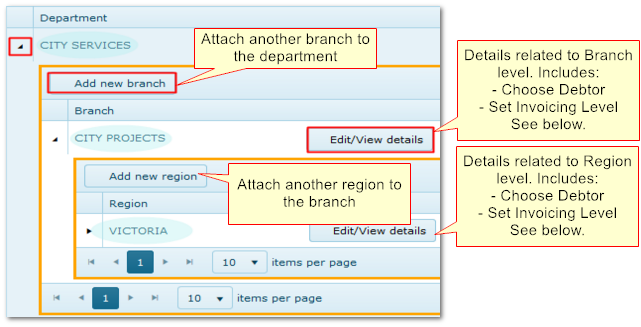
Add new departments, branches etc. using the "Add new record" buttons.
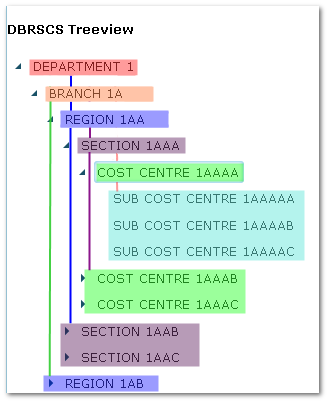
•Add a Department, then attach Branches below, followed by Regions, Sections etc. to create your organisational tree
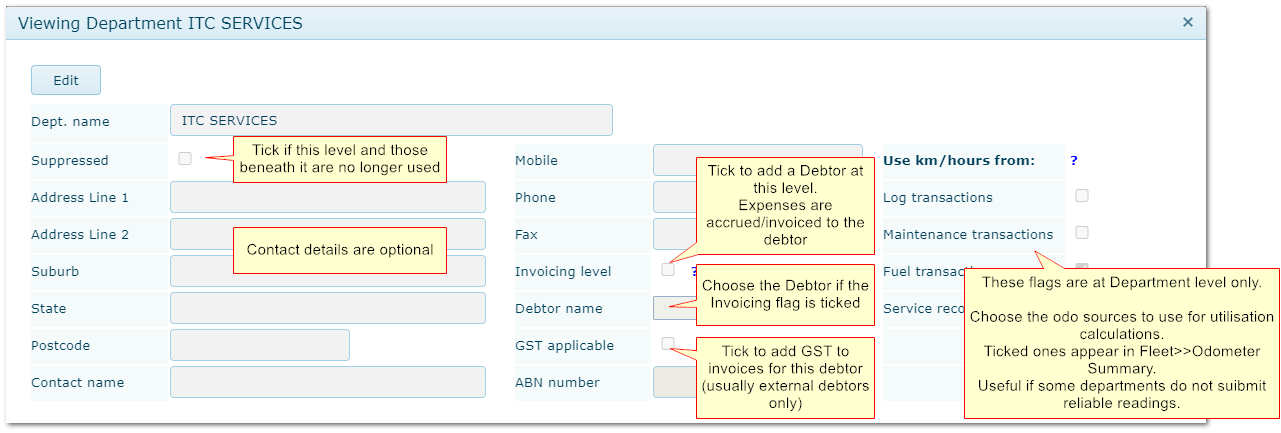
•Department level has the option to to select which odometer sources to use/ignore for that Department - "Use km/hours from" flags
•Proceed down the tree, adding levels as required - not all levels have to be used
•At each level use the "Edit/View Details" buttons to add details (see screen below)
•A Debtor may only be attached at one level in each unique hierarchy.
It is normal practice to select a Debtor at one of the levels to accrue/invoice to that Debtor by default.
The Tree View of a Hierarchy
|
|
|
4.1 Creating a Department Hierarchy
Department Hierarchy Reference File
|
|
|
Adding Details at Department Level
|

