|
1. Reorder Configuration
Inventory>>Parts Details>>Reorder Configuration section
This feature generates a list of suggested orders based on a Reorder Configuration for each part.
Initially, configure how the reorder list is generated, using the settings below. These will be used by AusFleet to generate a list of parts to be ordered.
Note:
To avoid entering these settings for every part individually, a default configuration can be set using More>>Parameters>>Default Values 1340 & 1350.
This default is then used when adding any new parts to the database to minimise data entry, but it can be changed for individual parts in the parts details screen.
Setting
|
Description
|
Default Supplier
|
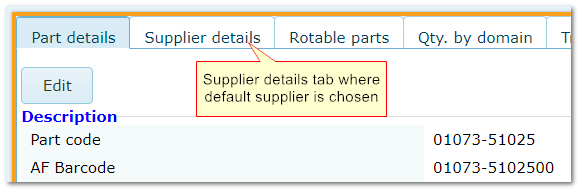
This defaults to the one selected in the Supplier tab for the part. A different supplier can be chosen when generating orders
|
Minimum/Maximum Quantities
|
Enter your ideal minimum and maximum available stock levels for the part
|
Reorder if...
|
Set how to trigger the suggested reorder from one of the 2 methods:
a)when available qty falls below maximum qty OR
b)when available qty is equal to or less than minimum qty.
|
Reorder Quantity
|
Choose one of the three options for calculating the reorder quantity:
a)A fixed amount: Tick the box and enter the quantity OR
b)The quantity issued in the last week/month: Tick the box and choose week or month OR
c)(Maximum Qty) - (Available Qty): Tick the box. Maximum quantity is the one you entered above
|
Save
|
Save your settings
|
Reorder Configuration in Inventory Parts Details

Supplier Details tab
2. Reviewing and Generating Recommended Reorders
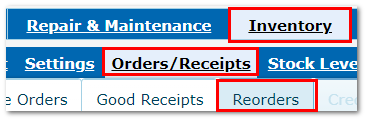
Inventory>>Orders/Receipts>>Reorders
The configuration you set above generates a list of suggested orders which is continually updated as stock quantities change.
Locating Recommended Reorders
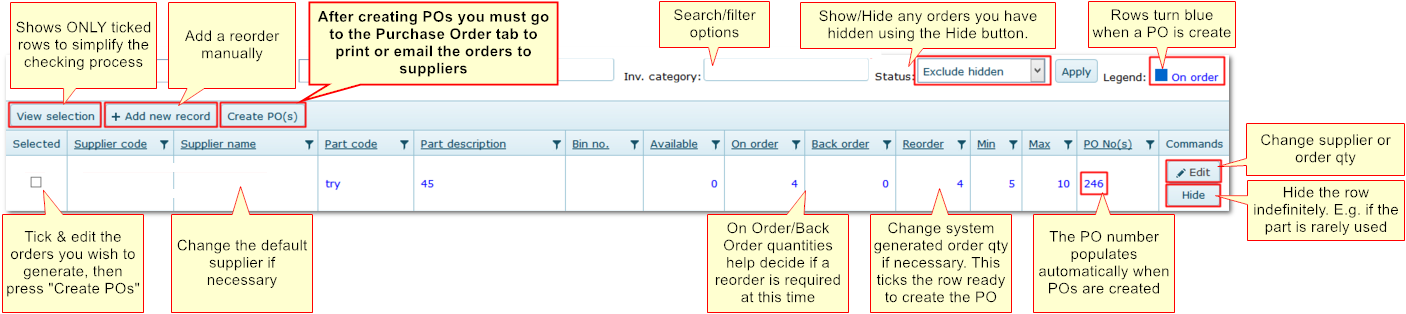
Review the list and make changes as required before generating orders
Option
|
Description
|
Order quantity
|
You can change the system gen rated quantity using the Edit button
|
Supplier
|
You can change the default supplier using the Edit button
|
On order/back order
|
These quantities help you decide if a new order is required at this time
|
Part selection
|
Tick the parts you want to order
|
View Selection
|
Display only the parts you have selected
|
Add new record
|
Allows you to add another part to the list in addition to what the system has generated
|
Hide
|
Allows you to indefinitely hide parts that are on the list. Show them again using the "Status" filter above the list
|
Create POs
|
When you are happy with your settings/selections, click to generate orders.
Then go to Inventory>>Orders/Receipts>> Purchase Orders to print or email orders
|
Reorder Screen Details
3. Other Reorder Features
The Reorder is Still Displayed in Blue After Creating the PO?
It's because the order quantity did not fulfill the requirements of the reorder configuration.
The Reorder is No Longer Needed?
Hide rows indefinitely using the "Hide" button. This is useful for rarely used parts. You may wish to change the reorder configuration for the item accordingly.
Display Only the Rows/Reorders You Have Selected?
Click "View Selection".
Add an Order That Has Not Been Automatically Generated
Click "Add New Record". The PO must be created at the time of entry, otherwise details will be lost when the reorder list is automatically refreshed.
Important: After creating PO's in the recorders screen, you must email/print the PO's in the Purchase Order tab.
End of Chapter.
|

