|
1. Stocktakes
Inventory>>Stock Level>>Stock Take
The main grid displays previous and current stock takes.
When a stocktake count is underway:
•Do not create/process purchase orders, goods receipts, transfers, adjustments etc.
•Do not adjust shelf stock
•Outstanding/pending transactions should be processed before clicking "Start Count" or after "Post" to ensure correct system/bin quantities
•Advise appropriate staff of the above to ensure accurate results
2. During and After a Stocktake
2.1 During the Count
•Avoid processing GRs and other transactions - it can create a discrepancy between count lists and system quantities
•Use bar code reader to identify and locate items or search for them in list
2.2 On completion of Count
•Enter counted bin quantities or use "Copy system qty to bin quantity" to update bin quantities and then make any amendments before posting results (this helps avoid having to enter every bin quantity manually)
•"Post" stocktake to update all system quantities with bin quantities
•Enter pending transactions
•Opening date, quantity and value of all included parts will be updated in parts details
3. Creating a New Stocktake
Follow the three steps below:
Click "Add New Record" to Open The New Stock Take Screen
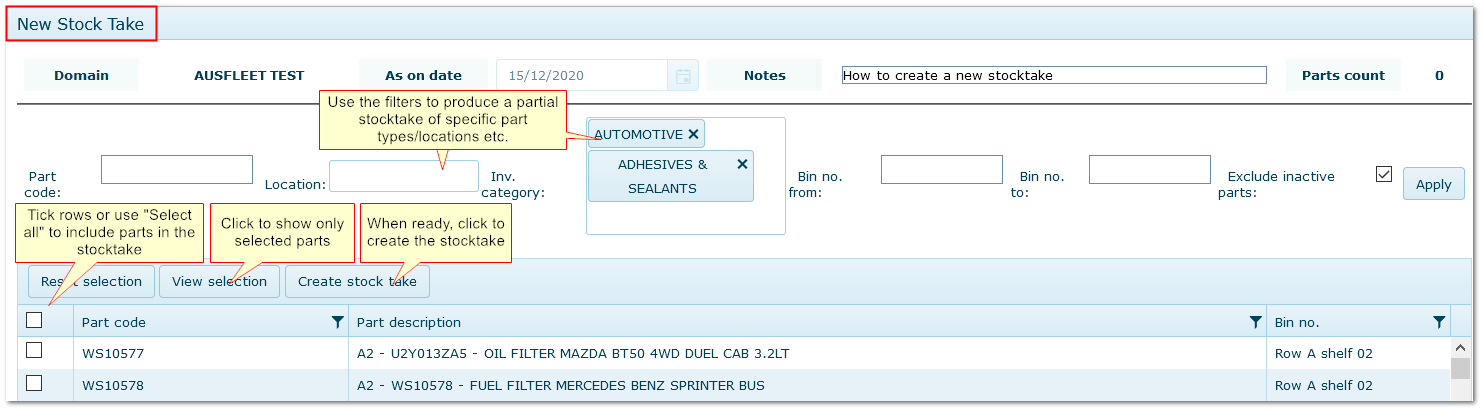
Creating a New Stocktake
|
Your New Stock Take Appears at the Top of the Stock Take List

Your New Stocktake Appears at the Top of the Stocktake List
|
Check the Parts List - "Start Count" - Enter Shelf Quantities
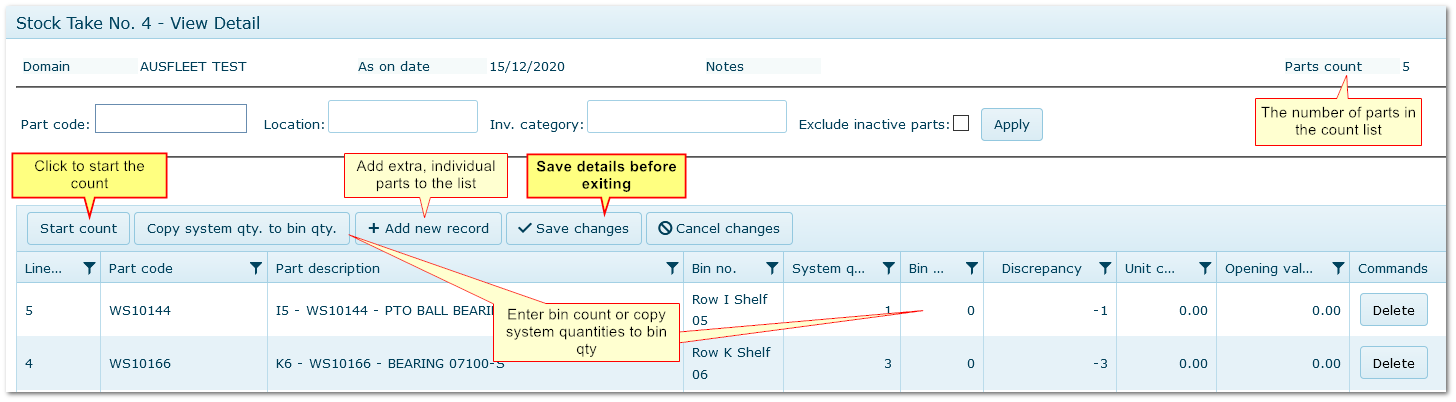
Stock Take Details
|
Exporting Stocktake Details to Spreadsheet (csv format)
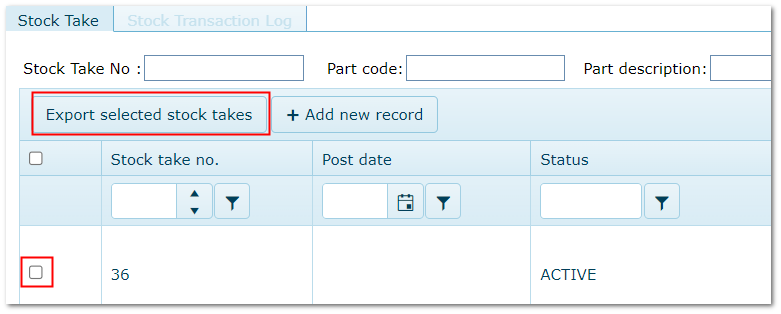
Export Stock Take Details
|
End of Chapter.
|

