|
See also: Renewals Module
1. Importing a Renewals File
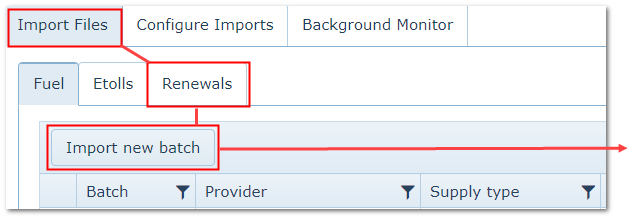
Transactions>>Import Files>>Import Files>>Renewals
1.Click “Import New Batch” button.
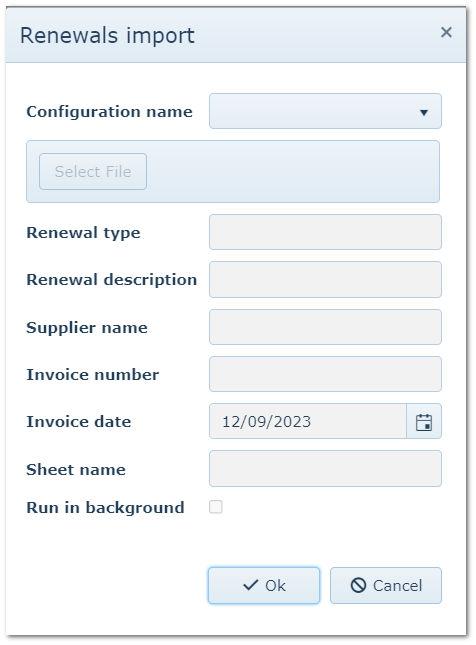
2.Select the configuration to be used.
3.The Supplier, Renewal Type, Description and Sheet name (if applicable) should then automatically fill.
4.If the Sheet name needs to be changed, this field can still be edited.
5.Click “Select File” and locate the file to be imported.
6.Enter the Invoice number and date.
7.If you are importing a large file that will take time, tick “Run in Background” which will allow you to continue using AusFleet while the file is being imported.
8.A results summary appears on completion.
9.The new batch appears main the main screen ready for any suspended records to be checked and amended (see point 2 below)
2. View Batch and Fix Suspended Transactions
Transactions>>Import Files>>Import Files>>Renewals
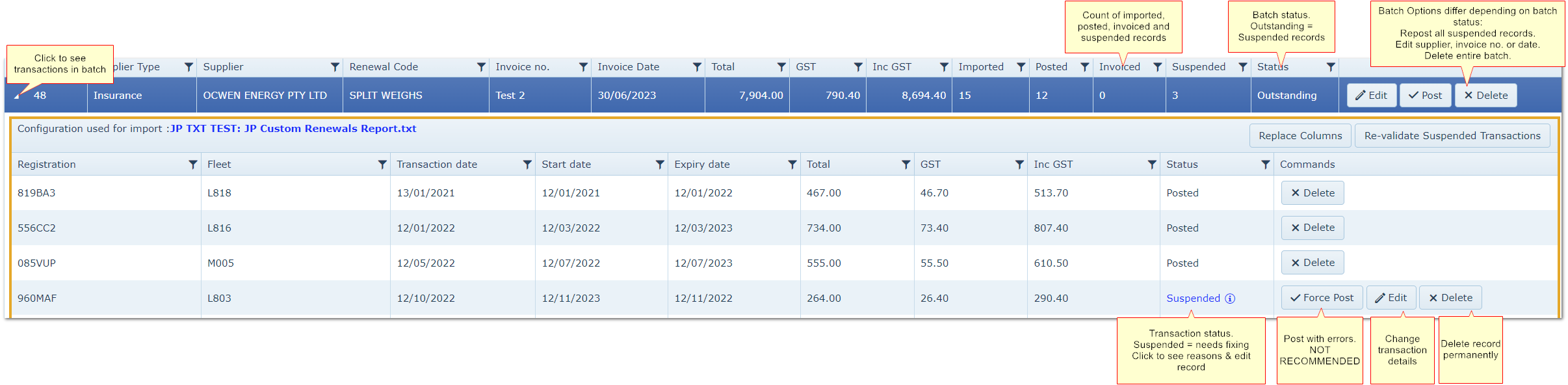
The batch header show total records and number posted/suspended.
Batch Status:
Completed: All records posted successfully
Outstanding: One or more records have been suspended due to failed validations
Open the batch and review suspensions.
Hint: It may be easier to click on the "Status" column heading to sort by status and bring suspended records to the top.
1.Click "Suspended" to see reason for suspension and suggested actions.
2.Click "Edit" to amend information in the record.
3.Click "Delete" to permanently delete the record.
4.When fixed, "Post" individual records or the entire batch (only suspended records are posted).
5.Check that all records are now successfully posted. If not repeat above for remaining suspended records
Warning: Use "Force Post" with caution. Can result in submitting erroneous records. Not available for all suspension reasons.
|