|
From Version 9.3 the following import process has been replaced by an updated import module and will be removed during 2023/4.
New File Import Programs.
1. Importing Fuel Supplier Files
Each fuel supplier provides its transaction files in a standard format. AusFleet is designed to accept and import these files by default.
If you see a message saying the file format is incorrect, it is usually the result of:
•The fuel company changing its normal file format - they are unable to advise us of changes so we rely on reports from users
•The file has been changed by one of your users - it is important the files are not amended in any way before importing into AusFleet
•An error in our program - we will investigate and fix it as a priority as soon as we are alerted
If you see the message, first check the file has not been changed by one of your team.
If not, contact AusFleet Help Desk on 02 9986 2800 for assistance.
2. Import Process
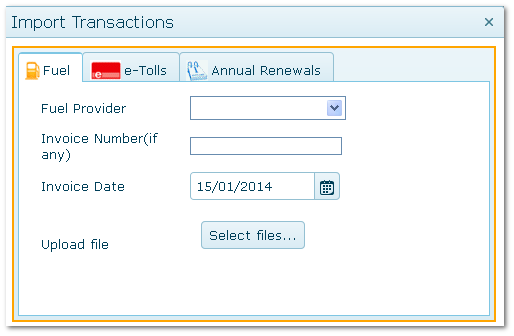
Transactions>>Import Transactions>>Fuel
1.Enter Fuel Provider, Invoice Number and Invoice Date
2.Locate the file to be imported or drag it into the window
3.Click "Upload file" when the button appears
4.Each transactions is validated (see Transaction Validations) and posted or suspended automatically
5.A results summary appears on completion
Costs and fuel use are not recognised until successfully posted.
Importing Fuel Files
3. View Batch and Fix Suspended Transactions
Transactions>>Fuel>>Batch
The most recent imported batch is at the top of the list by default.
The batch header show total records and number posted/suspended.
Batch Status:
Completed: All records posted successfully
Outstanding: One or more records have been suspended due to failed validations
Open the batch and review suspensions.
Hint: It may be easier to click on the "Status" column heading to sort by status and bring suspended records to the top.
1.Click "Reasons" to see reason for suspension together with the suggested action to fix the problem.
2.Some fleet details can be changed in the Reasons pop up if the error relates to the asset
3.Click "Edit" to amend information in the record
4.Click "Delete" to permanently delete the record
5.Click "Force Post" to bypass validations and post anyway
Warning: Use "Force Post" with caution. Can result in submitting erroneous records. Not available for all suspension reasons.
When fixed, "Post" individual records or the entire batch (only suspended records are posted). Check that all records are now successfully posted.
Fuel Batch - Fixing Suspended Records

|

