|
|
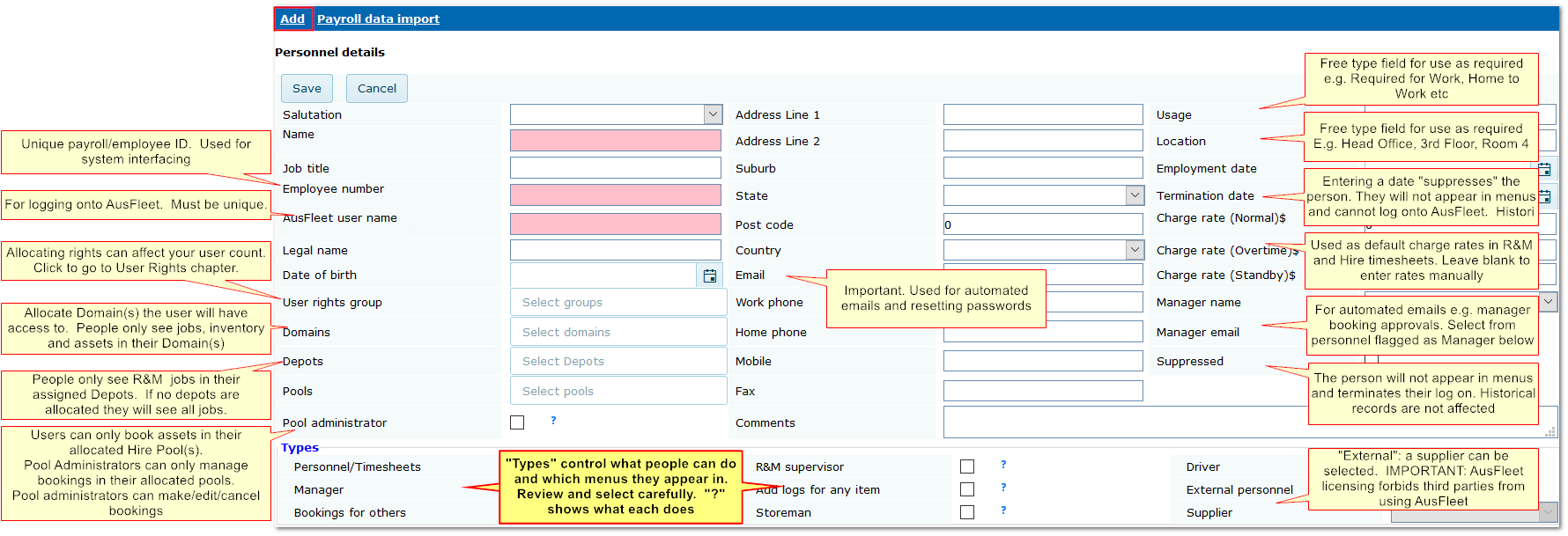
2. Adding Personnel
Personnel>>Add
or use the icon 
Further details can be entered after saving the core information.
See also: Personnel Type Flags
Add Personnel Screen
For more information about User Rights and Maximum Licensed User Count:
Non-Licensed User Rights
User Rights and Groups
3. Adding Additional Information
After saving the details above, more information can be added.
3.1 Tabs
See logs
|
•A record of logs entered in relation to the person
•Logs are added using the Logs module, Fleet module (Fleet>>Odometer accordion) or Quick Task icon
|

|
Domains
|
•View, allocate and retract Domain access
|
Policies
|
•Record policies applying to the person e.g. HS&E policy, fair use policy etc.
•Enter the policy name, document name, policy registration number and date
•Tick to confirm Received
|
Hire Pool
|
•Add and amend Hire Pool allocation. People only see vehicles in Hire module/App that are in the Pools they are allocated
|
Documents
|
•View and upload Documents related to the person
•Requires Documents module
|
3.2 Accordions
Alternative address
|
•Enter alternative address if required e.g. postal address, work address, interstate address
•Address "Types" in the menu are controlled by reference file More>>Reference Files>>Personnel>>Address types
|
Licenses, Trades and Qualifications
|
•Enter for reference purposes to assist with task/vehicle allocation etc.
•Allocate User Right 80.04 to people to generate notifications to update licence details when they log on. Users will be asked to update licence details if licence number is missing or expiry date is missing/incorrect format, due within 15 days or expired
|
Vehicle Allocation
|
•Make the person the driver/custodian of assets
•An asset can only have one driver at any time but one person can have multiple assets
•Enter an "Unallocation" date/time before allocating an new asset
|
Responsibilities
|
•Assets which the person is responsible for based on the person and asset having the same cost centre
•Responsibilities do not allocate a driver to an asset; use Vehicle Allocation to set the driver/custodian
•By ticking Parameter 30 (and optionally number 40), assets with the same cost centre as the person appear here and access can be given to AusFleet Reports to report on ticked items in this list
•Useful for identifying team leaders or department heads who may have multiple assets within their teams
|
Cost Centres
|
•Personnel cost centre and debtor are used to invoice hire charges to the driver
•The hire income accrues to the asset
•See also "Responsibilities" above
|
Images
|
•Add a photo of the person (jpg, png, gif)
•The photo is stored in the database. There is a limit on the size of the image file
|
|
|

