|
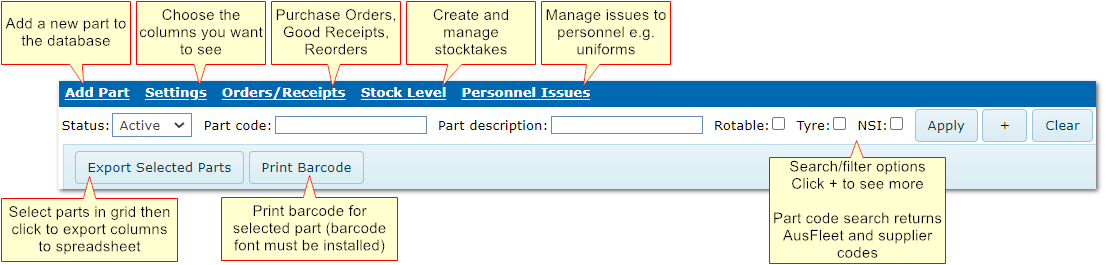
1. Inventory Menu Options
2.1 How to Print Barcodes
Printing barcodes sends details to pdf, one code per page, from where labels or hard copies can be printed.
A barcode font must be installed on the computer E.g. Google Libre 128. Download zip file, extract, right click on font file and choose "Install".
2.2 How to Export Parts Details to Excel
In the main Inventory view, tick the parts you wish to export using the boxes on the left (see screenshot above).
Click the "Export Selected Parts" button and the columns in the main view will be exported as a csv file, to open in Excel or notepad.
2. Parts Tabs
Inventory>>Select Part
3.1 Tabs
For every inventory item, the tabs provide further information and options.
Place your cursor over the red areas to see a brief explanation and further details are provided in the sections below.

Tabs are explained further in the related Inventory chapters
End of chapter.
|

