|
1. Introduction
Transactions can be invoiced using either:
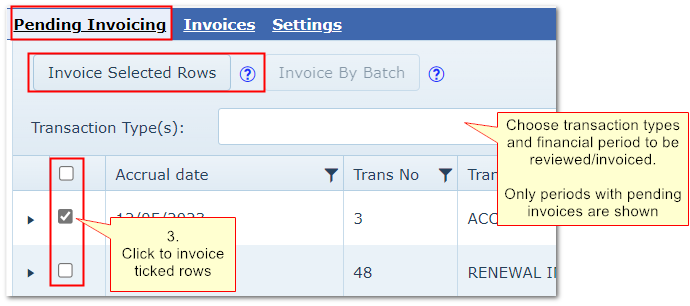
Invoice Selected Rows
Best for individual or low volumes of transactions.
Tick rows to be invoiced.
Invoice by Batch
Batch invoicing best for large numbers of transactions.
A six step process where filters are applied to all pending transactions to determine what to invoice.
2. Invoice by Ticking Rows
Invoicing>>Pending Invoicing>>"Invoice Selected Rows"
•Choose the financial period and transaction types you want to review/invoice
•Transactions will be grouped together in the same row if they share the same*:
•Fleet number AND
•Transaction number AND
•Transaction Type AND
•Debtor
•You can expand each row to see the component charges E.g. parts and labour in a R&M job
•Tick the row(s) you want to invoice and click "Create Invoices" - rows cannot be ticked/invoiced if there is no driver or debtor
•Follow the process below
*Usually fuel, tolls and renewals records where a batch number is used as the transaction number.
E.g. all tolls and fuel expenses incurred by an asset in the period are grouped in one row rather than listing every expense separately.
Open the row to see the individual records.
Ticking the transactions to invoice then follow the four step process:
Step 1. Choose whether to include GST e.g. for external or personal invoicing. GST is not usually levied on internal recharging
|
|

|
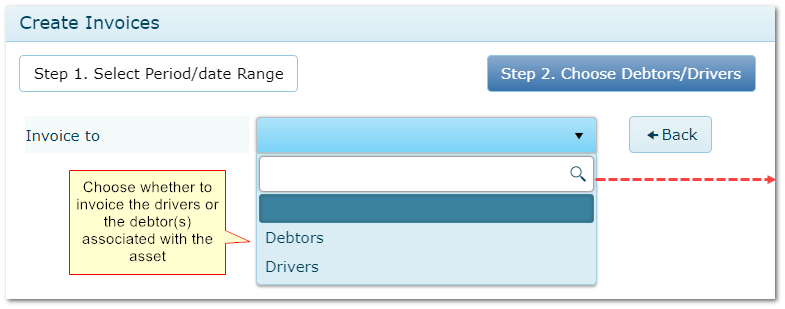
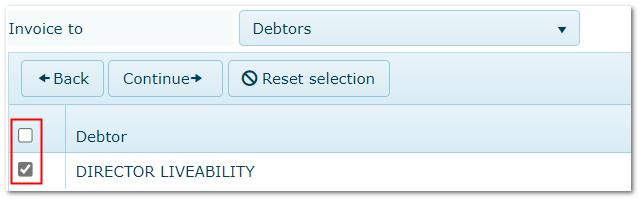
Step 2. Choose to invoice drivers OR debtors associated with the asset. Select any/all of the drivers/debtors to include
|
|
|
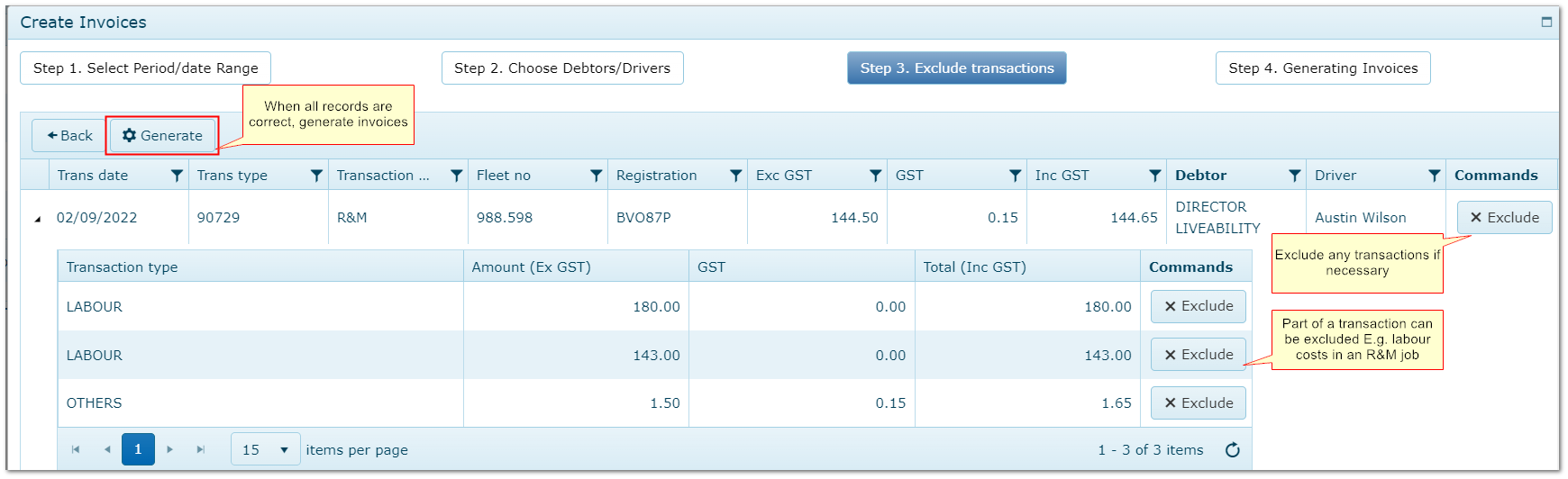
Step 3. Review records and exclude any if necessary. Click "Generate"
|
|
|
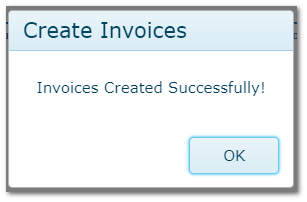
Step 4. Invoices are generated. The records move from "Pending Invoicing" to "Invoices".
|
|
|
3. Batch Invoicing - "Generate Invoices"
Invoicing>>Generate Invoices
This method is designed for invoicing a large volume of transactions at once.
Click "Invoice by Batch" to start the process.

Note:
•Records with no Debtor or Driver cannot be invoiced and will be excluded
•At each step, the choices are filtered based on prior selections
•Any transactions excluded during the process remain in the "Pending Invoicing" list
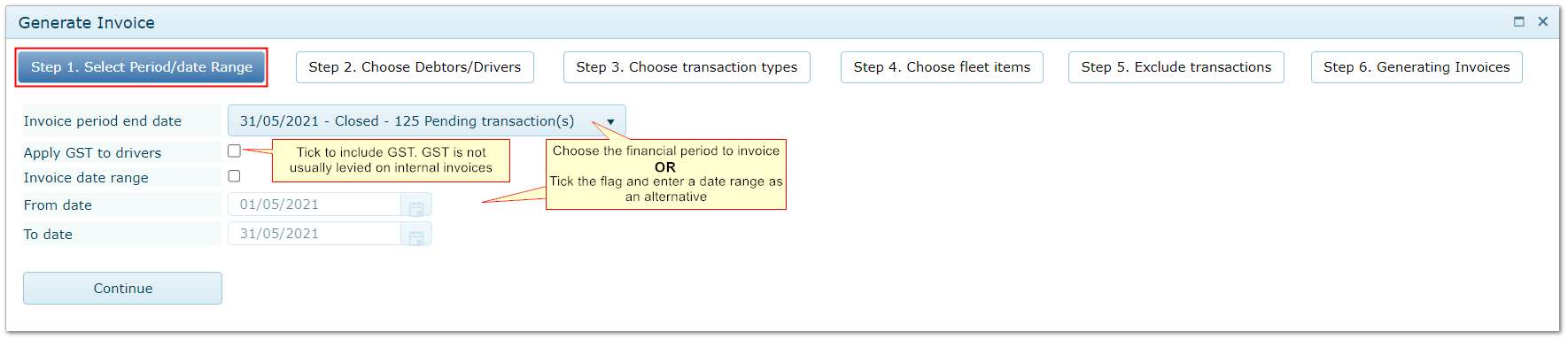
Step 1. Choose to Include GST on Drivers' Invoices
|
|
|
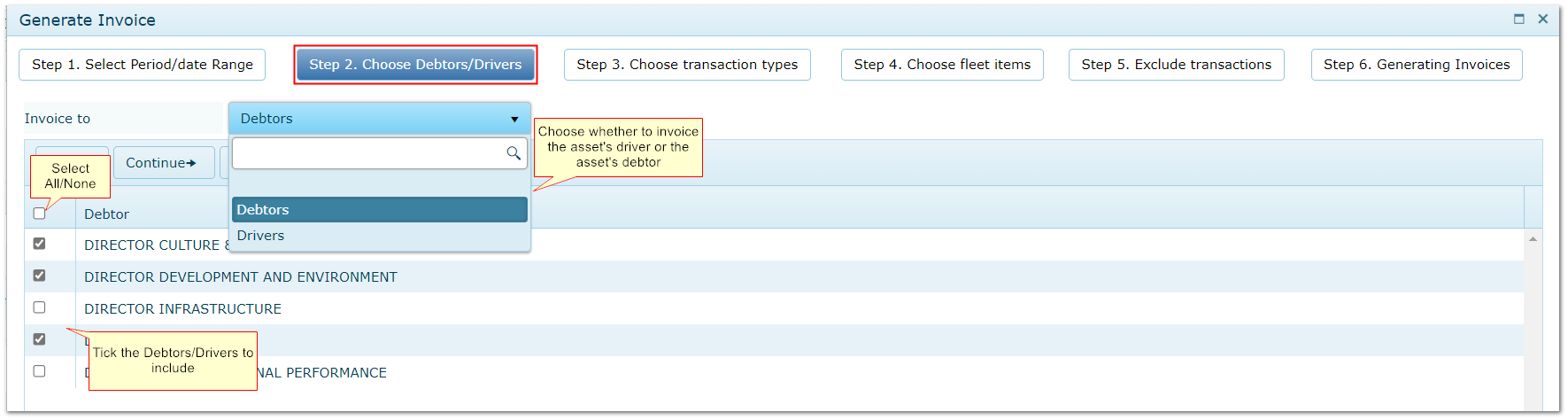
Step 2. Choose to Invoice Expenses to the Assets' Debtors or Drivers
|
|
|
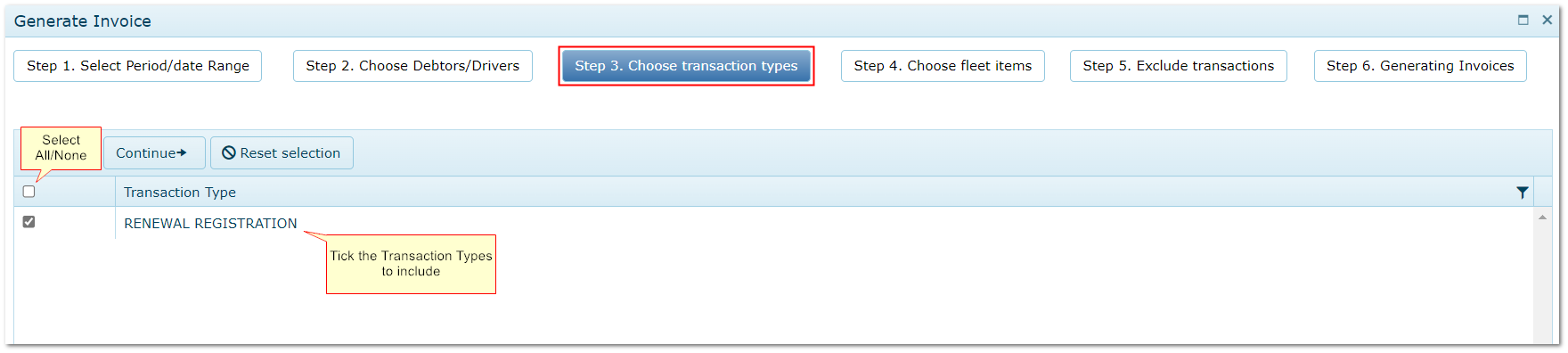
Step 3. Choose Transaction Types to Include
|
|
|
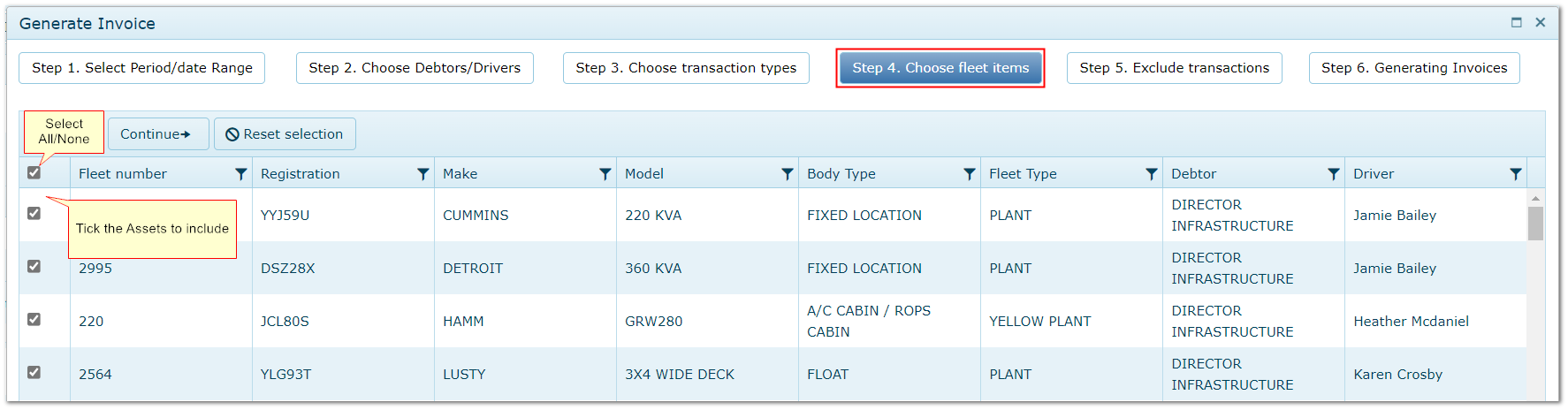
Step 4. Choose Assets to Include
|
|
|
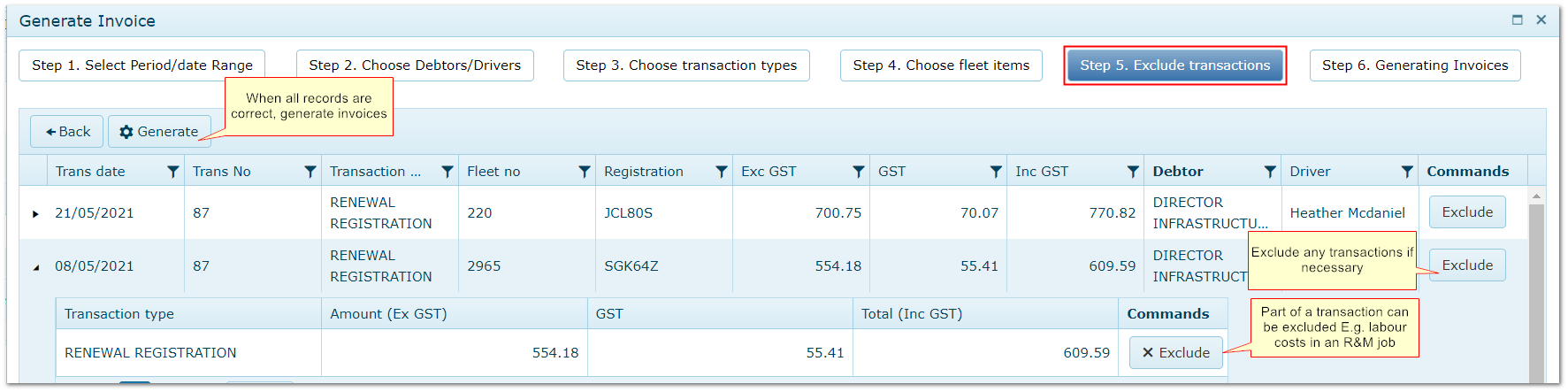
Step 5. Exclude Selected Records If Necessary
|
|
|
Step 6. Invoices are generated. The records move from "Pending Invoicing" to "Invoices".
|
|
.png)
|
|

