|
1. File Format and Related Requirements
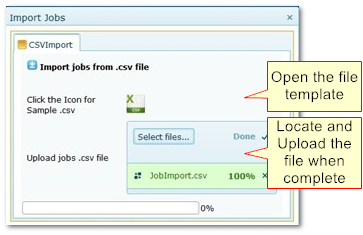
The file template can be found at Repair & Maintenance>>Job Import>>Create New Batch.
It is recommended that suppliers are given a reference sheet containing the codes/details they are allowed to use.
|
The file must be saved in csv format. These can be opened and edited in Excel but DO NOT save as .xls or .xlsx
|
|
Suppliers must enter details which correspond to details in More>>Reference Files>>Job Import
|
|
Service Kit names in file must exactly match kit names in AusFleet
|
|
Data must be entered in correct format e.g. date is dd/mm/yyyy, currency is $.cc
|
|
Format all cells in the template as "text" to ensure leading and ending zeros are retained
|
|
Do not change the order of columns or remove columns
|
|
Spaces (n registration numbers for example) must be included in the file if they are in AusFleet
|
|
Do not remove column headings Row 1
|
|
Job records must start at Row 2
|
2 Importing Service Jobs
The supplier must populate the Kit name for any service jobs. The Kit name used by the supplier must exactly match the one in AusFleet.
AusFleet considers the odometer and date in the csv file and applies the following logic to update the service records in AusFleet:
“Forecast Service by Time Only” Flag
Fleet>>MMSB, Flags and Settings
|
Logic Applied to Update Service Records
|
|
Flag OFF
|
Odo in the file is matched to the closest “Forecast Odometer” in the Service Matrix to determine the service sequence.
|
Any services between the last "Completed" service and the match found are marked as "Missed".
|
|
Flag ON
|
Job date in the file is matched with the closest “Forecast Date” in the Service Matrix to determine the correct service sequence.
|
3. Import and Post the File
Repair & Maintenance > Job Import >Create New Batch
•AusFleet validates and attempts to post each transaction as part of the import process
•At the end of the process:
•Suspended records are listed and can be reviewed - see 4 below
•Successful records create a Closed job in the R&M job list
4. Validations
During import each transaction is audited for the following conditions.
|
Ensure Registration Number exists in AusFleet
|
|
Ensure Job Date is not prior to delivery date
|
|
Ensure Job Date is not after disposal date
|
|
Ensure the cost component (e.g. labour, parts) is mapped to a “Transaction Type” in Job Import reference files
|
|
The following validations have a "Force Post" option, which overrides the validation, posting the transaction regardless.
Use this carefully to avoid recording erroneous data.
|
|
Ensure transaction is not a duplicate (system checks for match on multiple values)
|
|
Ensure the Service Provider code in file matches a maintenance supplier in AusFleet
|
|
Ensure Service Kit name in file matches the Service Kit name in AusFleet. If the Kit contains parts they will imported to the job details
|
|
Ensure the odometer in the csv file is equal to or greater than the last recorded odometer in AusFleet
|
5. Review Results
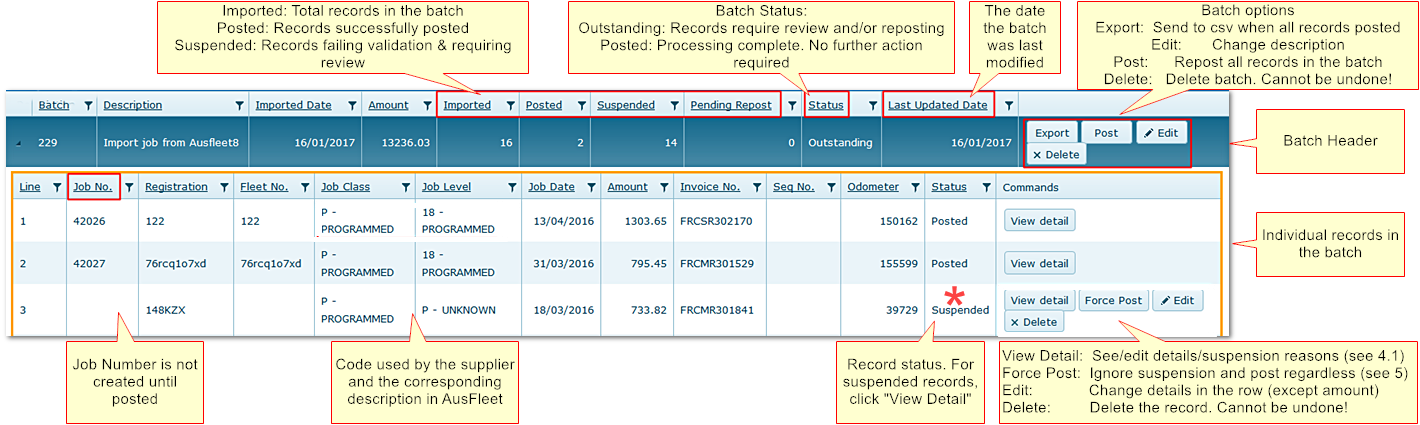
After importing, the batch appears at the top of the Job Import window.
•Open the batch, look for suspended records (See * in the screen below)
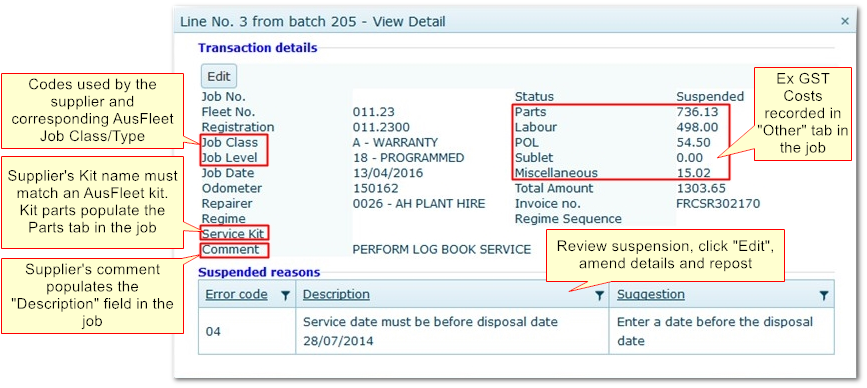
•Click "View Detail", fix the error and repost. Individual records or the entire batch may be posted
Batch Details After Import
6. Fix Suspended Records
If the record is suspended, click Edit and amend accordingly.
7. Force Posting Suspended Records
Records may be "Force Posted" if they are suspended for the following reasons.
Force posting overrides the suspension and posts using the following rules.
IMPORTANT
Force posting is not recommended as it affects data accuracy.
Posting incorrect odometers can affect the daily utilisation figure used for service and disposal scheduling.
It may also prevent odometers being entered in other transactions due to validation against an incorrect odo posted here.
Force Post should be used only in exceptional circumstances
Example: If the odometer being posted is known to be correct and a previous, erroneous odometer is causing the suspension.
In this instance, force posting the new, lower reading may correct the error.
Suspense Reason
|
Action When Force Posting
|
Incorrect odometer
|
Posts odometer in the file regardless of error (see important note below)
|
Duplicate record
|
Posts the record regardless. Can result in duplicate jobs
|
Missing Supplier
|
Job is allocated to the Default Repairer as listed in More>>Parameters>>Default Values>>720
|
Missing Kit
|
No parts, sequence or kit name are assigned to the job.
Service matrix will be updated with no Kit name
|
|

