|
Maintaining the disciplines below will help ensure scheduling is accurate and automated, helping to reduce administration time and minimising errors.
It also means you can create service jobs quickly and easily from the Services Due list in R&M module.
See also: Understanding Scheduled Service Regimes
Requirements./Parts/Kits/Regimes Reference Files
Repair & Maintenance FAQs

For accurate service scheduling it is vital that jobs are closed when complete and that accurate odometers are recorded.
Closing a job triggers update of the service schedule.
1. Essential Procedures for Reliable Scheduling
•Close all jobs when complete - the future schedule (including next service date) is only updated when preceding service job is closed
•Enter accurate odometer readings. These are used for forecasting based on utilisation
Also, correctly set:
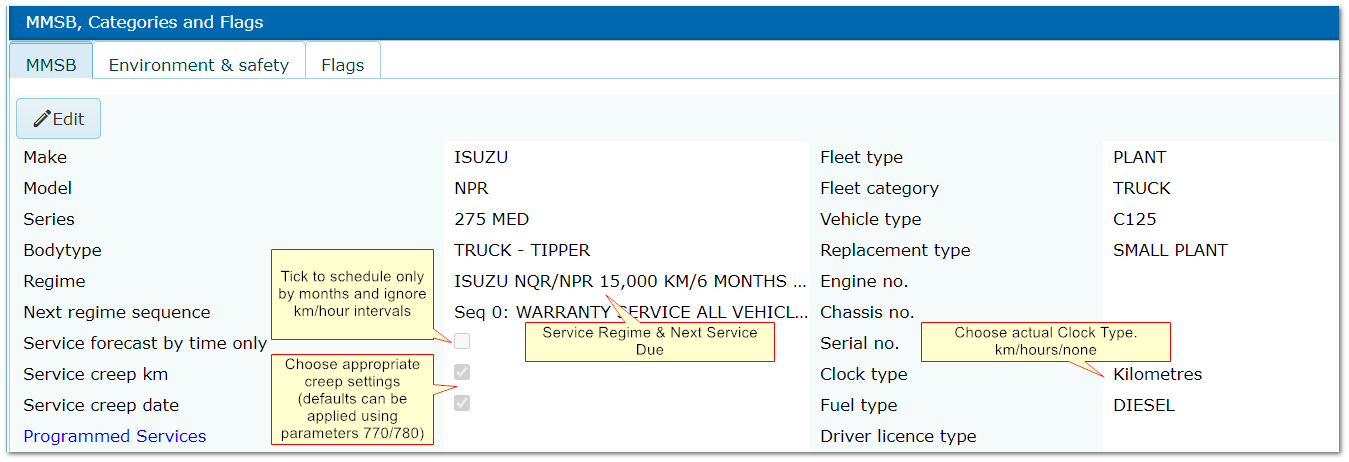
•Creep flags
•"Service by Time Only" flag
•Clock type (hours/km/none)
All these can be found in Fleet>>MMSB, Categories and Flags
2. Things to Avoid
Although the following functions are available, they should only be used in exceptional circumstances e.g. to correct errors caused by data entry mistakes, for example
If you are unsure, you can get advice from the AusFleet Help Desk on 02 9986 2800
2.1 "Change Due Date" Button in "Services Due"
If correct procedures are followed, AusFleet controls services dates automatically and you should not need to change the date using this button.
However, there are occasions where the service date can go "out of sync".
This usually only happens when service creep is off and jobs are not completed/closed in a timely manner.
If you find the "Due Date"for an asset is always in the past, the button can be used to reset the scheduling based on the date you enter for the next service.
2.2 "Next Regime Sequence" Field in Fleet>>MMSB
This field updates automatically when a service job is closed.
It should only be set manually when adding a new asset to the database where the service schedule is not starting at the beginning e.g. for second hand assets.
2.3 Clock Type
Don't choose a clock type for a non-clock item e.g. trailer. Set to "None" instead.
In Fleet>>MMSB, Categories & Flags you can choose from
•Kilometres (i.e. odometer)
•Hours (i,.e. hour meter)
•None (i.e for non-clock items)
Choose the clock type the asset has.
In the R&M job card, the Clock Type label changes based on what is set for the asset in Fleet module.
2.4 Completed Jobs
Don't leave completed jobs open longer than necessary.
The "next service date" and "service due" list are updated when previous service jobs are closed.
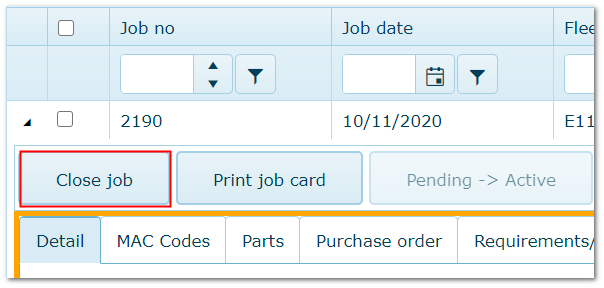
Close Job Button in R&M Job Details
|
|

For accurate service scheduling it is vital that jobs are closed when complete and that accurate odometers are recorded.
Closing a job triggers update of the service schedule.
|
|

