|
|
See also:
Checklists Module
Pre-Start Checklists Reporting
1. Using the App
Presentation will differ depending on the system (iOS or Android) and the device used.
1.
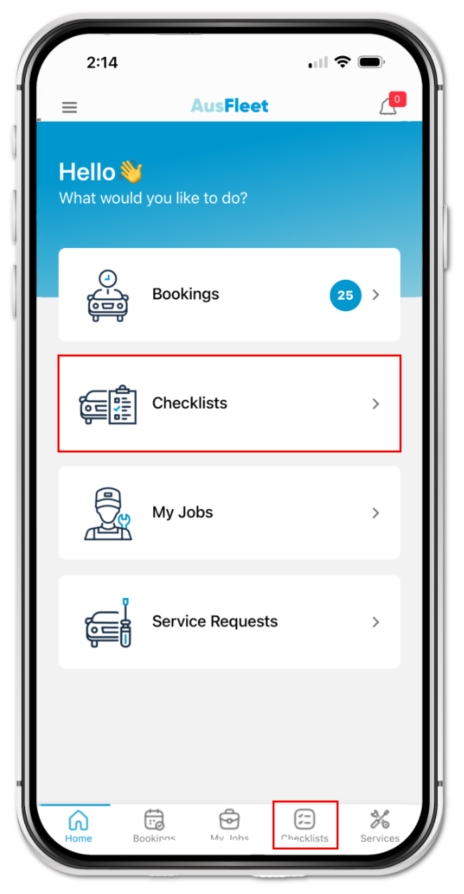
Select "Checklists" using either icon or the menu.
|
2.
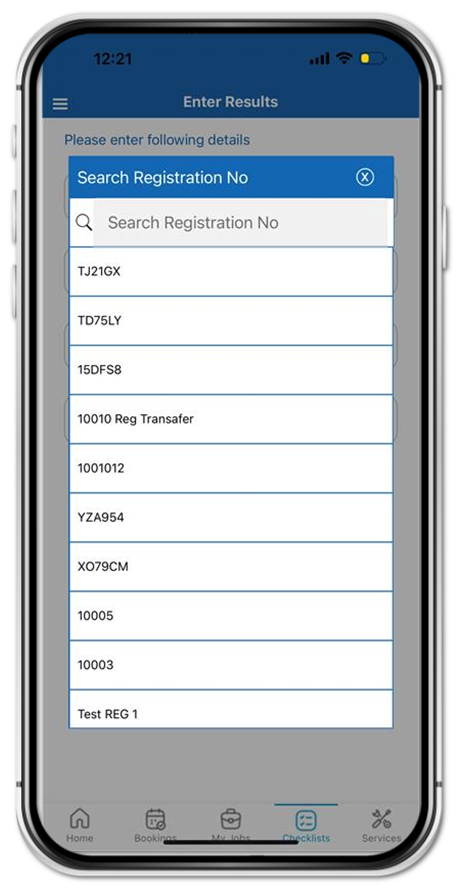
Enter the registration or fleet number and confirm.
|
3.
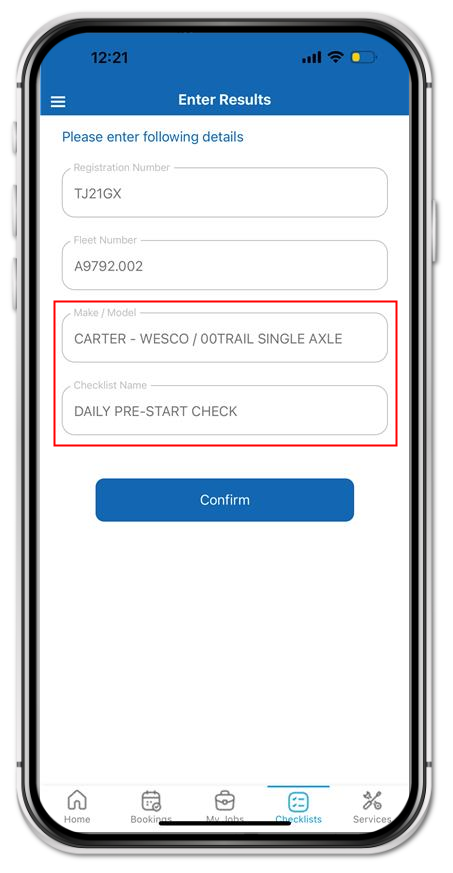
Check Make Model is correct. If a Checklist is not shown, contact your Fleet Department.
|
|
|
|
|
4.
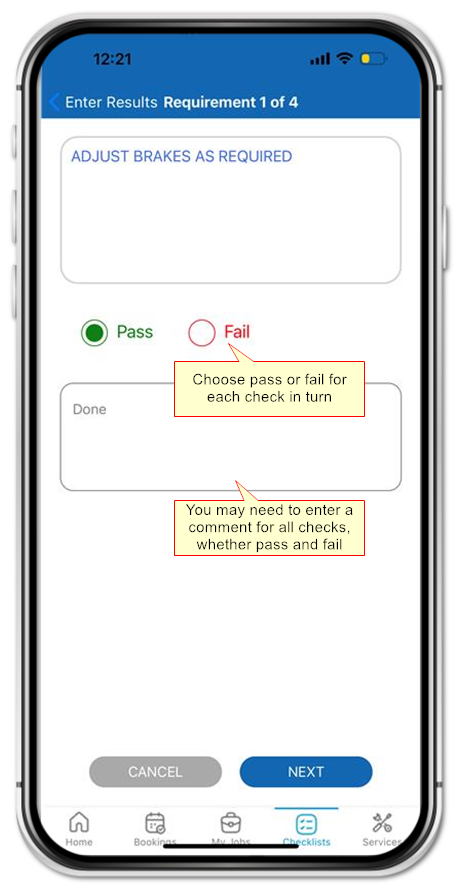
Carry out checks one by one, choosing Pass or Fail for each.
Your organisation's policies may require you to enter a comment regardless of result.
|
5.
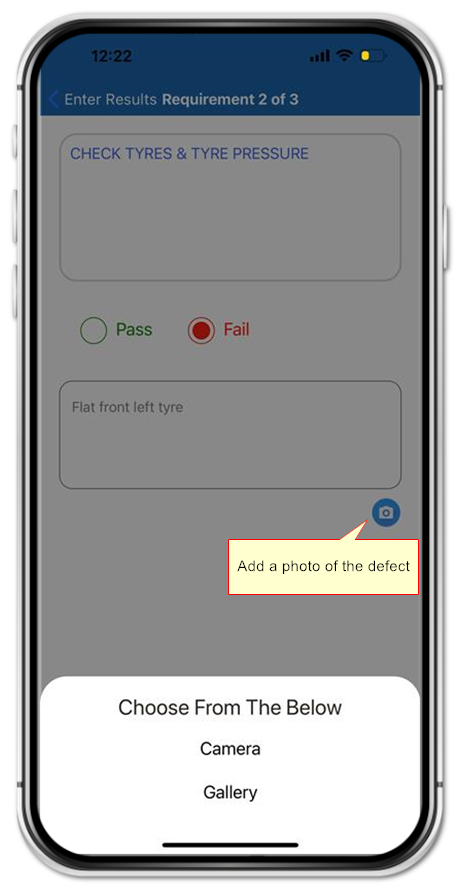
On "Fail", enter a "Comment". Your organisation may also require you to take a photo using the camera icon.
You may also add a photo if result if "Pass"

|
6.
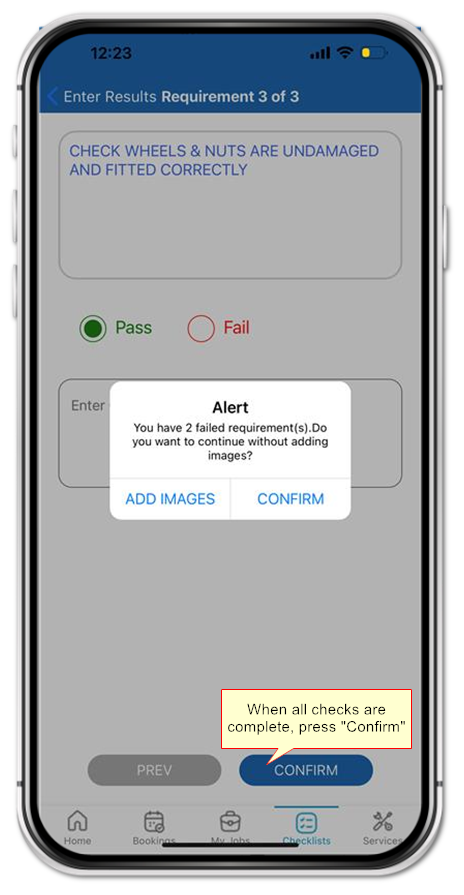
On the last check, press "Confirm" to submit all responses or press "Back" to change your entries.
If a serious or dangerous fault is detected, do not use the asset until your have spoken to your Fleet Department.
|
|
|
|
|
|
If you have reported a "Fail" you will be prompted to add a photo if you have not already done so.
If a serious or dangerous fault is detected, do not use the asset until your have consulted your Fleet Department
|
|
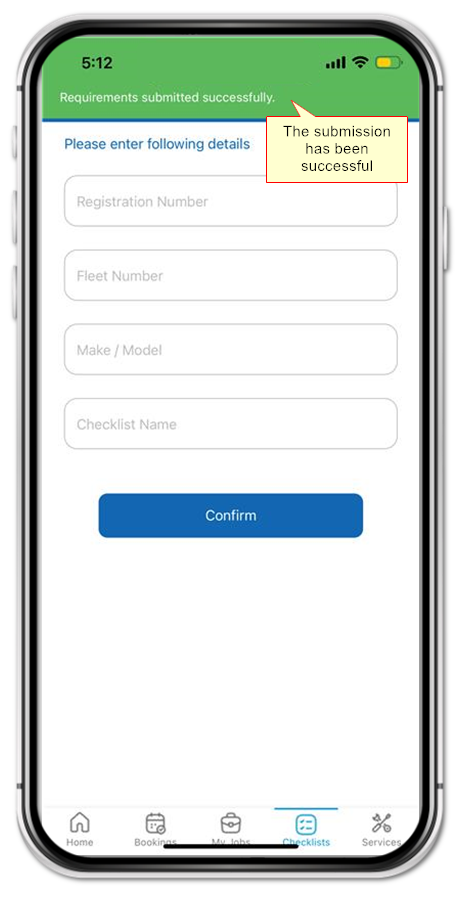
When results are submitted successfully, a notification appears.
|
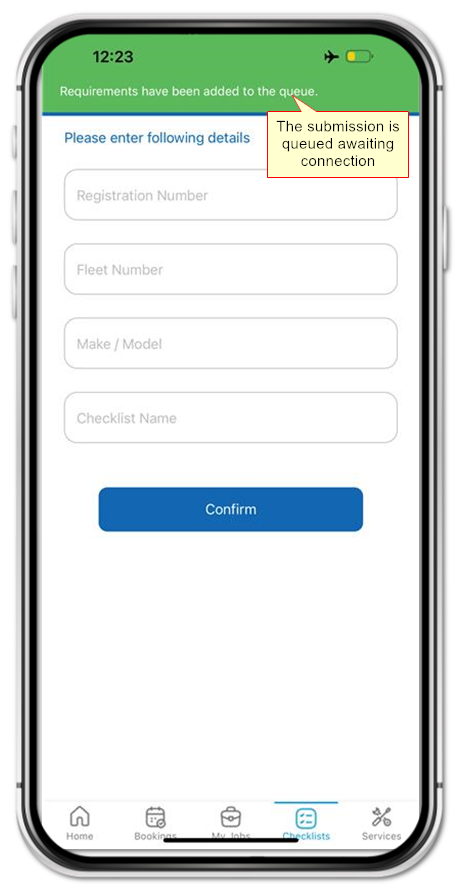
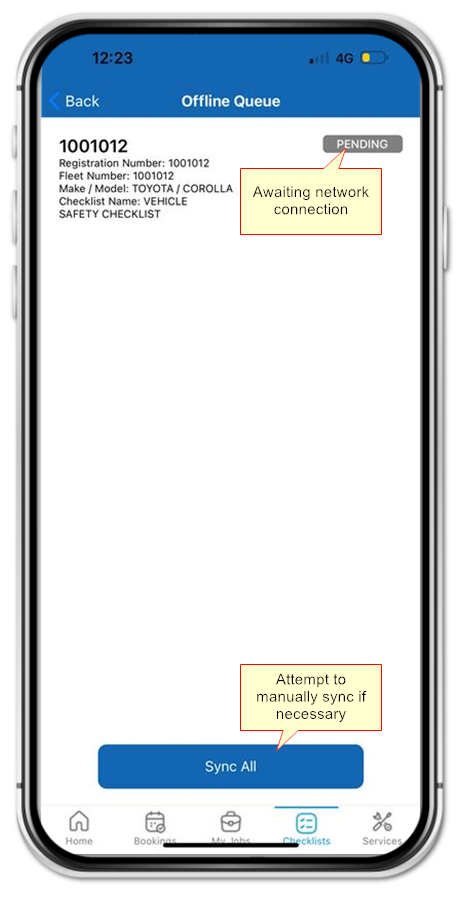
If you are offline when completing the checklist, results are queued pending network signal.
|
"PENDING" (awaiting network connection) and FAILED (other error) submissions are listed.
These attempt resubmission approximately every 15 minutes or can be synced manually using the button.
|
|
|
|
|
2. Emails for Periodic Checklists
Emails can be sent from AusFleet to drivers in relation to Period Checklists. These emails are system generated and do not accept replies.
1.1 Upcoming Inspection
More>>Templates>>Periodic Checklist (Upcoming)
If the asset's inspection schedule is periodic i.e. Monthly, Quarterly, Bi-Annually, Yearly, an email reminder is automatically sent to the allocated driver 7 days prior to the scheduled inspection date.
The email address must be available in Personnel module.
1.2 Overdue Inspection
More>>Templates>>Periodic Checklist (Overdue)
If a periodic checklist is not submitted by the due date, an email can be sent to the allocated driver to remind them.
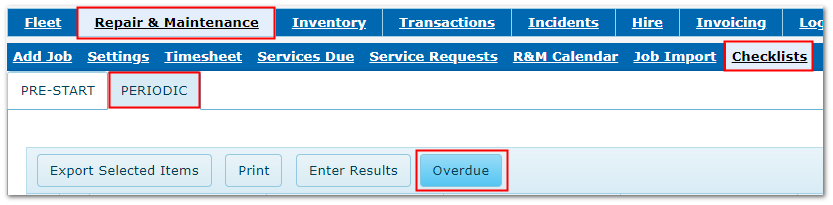
To do this, in AusFleet go to Checklists>>Periodic>>Overdue and click the Email button at the end of each row.
Viewing Overdue Periodic Checklists
|
|

