|
1. Introduction
Before use, please review the module Set Up details.
Repair & Maintenance (R&M) module provides:
•Service scheduling by time and/or utilisation
•Programmed service jobs (i.e. time only schedule) e.g. condition/safety checks
•Recording of jobs completed by external suppliers
•Maintenance Analysis using standard classifications to assist RCM programs
•Internal workshop control including:
•Personnel timesheets
•Downtime reporting
•Job cards via mobile App or printed
•Actual vs flat rates times and reporting
•Workshop Planning Calendar
•Automatic allocation of parts and requirements to service jobs
•Invoicing direct from the module
The Service Matrix tab in the Fleet module provides a record of services completed (or missed) and future schedule.
It cannot be changed manually but is updated automatically as jobs are activated/closed and edited and as odometers are entered or regimes updated.
Additional Options Available:
|
Checklists
|
An optional module for drivers/operators to complete pre-start or periodic compliance/safety/condition checklists using the AusFleet mobile app, to assist with NHVAS.
|
|
Job Import
|
An optional module to import external jobs details using csv files to reduce manual data entry.
|
|
Service Requests
|
Optional module to let drivers submit service requests from the AusFleet App to be received in R&M module for assessment and easy job creation
|
|
My Job Mobile App
|
Included with R&M module, it provides electronic job cards for internal jobs
|

For accurate service scheduling it is vital that jobs are closed when complete and that accurate odometers are recorded.
Closing a job triggers update of the service schedule.
2. Choose the Columns you Want to See
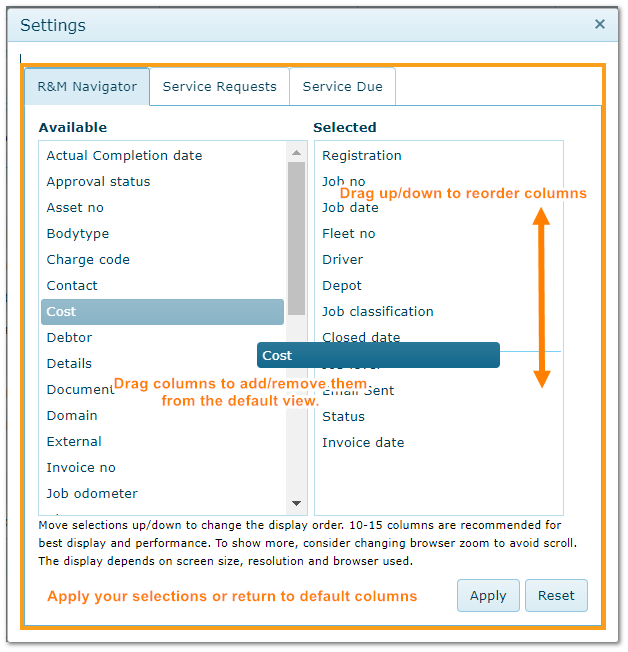
•Click on the R&M Menu on the R&M Menu
•Choose the screen to change - R&M Navigator, Service Requests* or Services Due
•Drag columns left/right to add/remove and up/down to order the columns selected
•Up to 12 columns are recommended for best display/performance
*Requires the Service Requests module
3. Current and Historical Job Views
To ensure system performance for large fleets with many jobs created over many years, AusFleet provides two views of the jobs list.
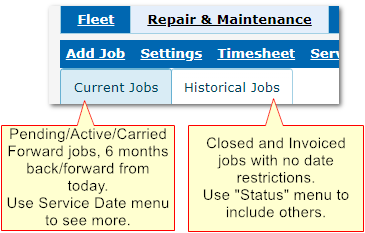
View Current or Historical Jobs
Current Jobs View
•The default view is Pending, Active and Carried Forward jobs from the last six months and those created for the next six months
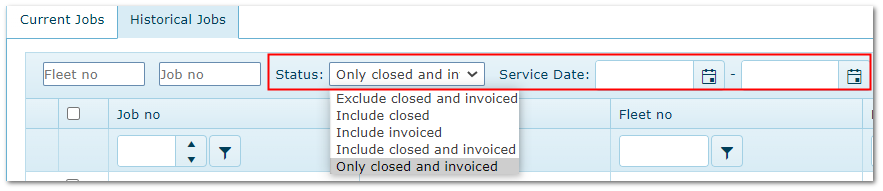
•The default can be changed by using the status and date range menus on the tool bar
Historical Jobs View
•To access all jobs, use the "Historical Jobs" tab, which includes all jobs recorded in AusFleet
•The default view is Closed and Invoiced jobs but this can be changed using the Status menu
Status and Date Range Menus
4. Job Status
|
Status
|
Description
|
Pending
|
The job has been scheduled with a "booked in" date but has not yet been activated.
If the job date on an active job is changed to a future date the status is updated to Pending.
Jobs are scheduled when creating jobs from Services Due, Service Requests, Checklists or Add Job.
|
Active
|
The job has been activated to commence using the "Pending>>Active" button in the job.
|
Carried Forward
|
When a job is closed with incomplete requirements or parts not fitted, a carried forward job for outstanding work/parts will be created automatically if parameter 660 is ticked. This ensures incomplete work is not forgotten.
The c/fwd job is dated for today by default and the Job Class/Type defaults based on Parameters>>Default Settings>>550/560.
Important: Do not create a Carried Forward job as a Service. Doing so may duplicate services and affect scheduling.
|
Closed
|
The job is complete and has been closed using the "Close Job" button the job.
If the job is a service, the service forecast is updated automatically when the job is closed.
|
Invoiced
|
The job has been closed and subsequently invoiced.
|
Job Details: Buttons to Change the Job Status

5. Viewing an Asset's R&M History and Future Schedule
There are various ways to see work carried out on an asset.
|
Option 1: In Fleet Module
Fleet>>Select Item>>Repair & Maintenance Tab
A quick reference of all jobs entered in R&M module for each asset.
|
|
Repair & Maintenance Tab in Fleet Module

|
|
Option 2: In Service Matrix
Fleet>>Select item>>Service Matrix Tab OR Repair & Maintenance>>Scheduled Service Jobs>>"View service history and future schedule" link
A view of scheduled services completed and forecast based on Regime, Utilisation/Time, Last Service Date, Creep settings, Scheduling method (time/utilisation/both)
To change any details the original transaction must be updated to ensure data integrity.
It does not include Programmed Services.
Automatic updates occur when:
•New odometer/hour meter readings are received
•Current service job is closed
•Regimes or regime details are changed e.g. service intervals
|
|
Service Matrix - Past and Future Scheduled Services

|
|
Option 3: In the Job List in R&M Module
R&M>>Historical Jobs Tab
For full details of an asset's R&M history, in the R&M module:
•Filter the list for the required asset fleet number or registration
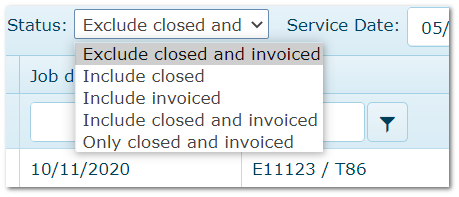
•Set the "Status" filter E.g. "Include Closed and Invoiced Jobs"
•Enter the required date range or leave blank for all
•Click Apply
•Use the column filters to drill down further
|
|
Set the Job Statuses to Include
|
|

