Click "Add new record" and date, supplier and optional notes.
Only suppliers ticked as "Inventory" in the Supplier reference file can be selected.
Status defaults to "Active" when saved.
2.
Click "Update" to save
3.
In the accordion, enter the parts to order, quantities etc.
4.
PO ratio is derived from the purchase units in the part details but can be changed if there are alternatives in the part's details
5.
Default unit price can be changed as required and derived as per Pricing methods.
6.
Click "Save Changes" when all parts are entered
If a PO is generated from a Repair & Maintenance job, the job number is referenced in the details. These parts must also be receipted in the originating R&M job.
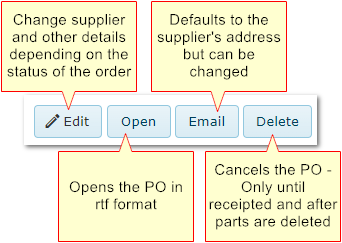
2. Purchase Order Commands
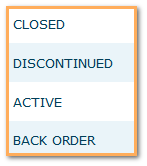
3. Purchase Order Status
Status is set automatically when all parts in the PO have been receipted on one or more GR's
Set using the "Discontinue" button if the PO is to be cancelled (all parts must be deleted first)
The PO has been created but no items have yet been received
Indicates a partially receipted PO - some items have been received but some items are still pending delivery